The Secret to Longer Battery Life Revealed: Google's Hidden Option
Phones
Optimizing Battery Life on Android: A Comprehensive Guide
Understanding Background Processes
- Resource Consumption: Background processes utilize system resources like the processor and network connectivity. This continuous resource drain can lead to faster battery depletion.
- Data Usage: Background processes can sometimes refresh data or perform tasks even when not actively used. This can result in increased data consumption, impacting your mobile data plan.
Identifying Battery Draining Apps
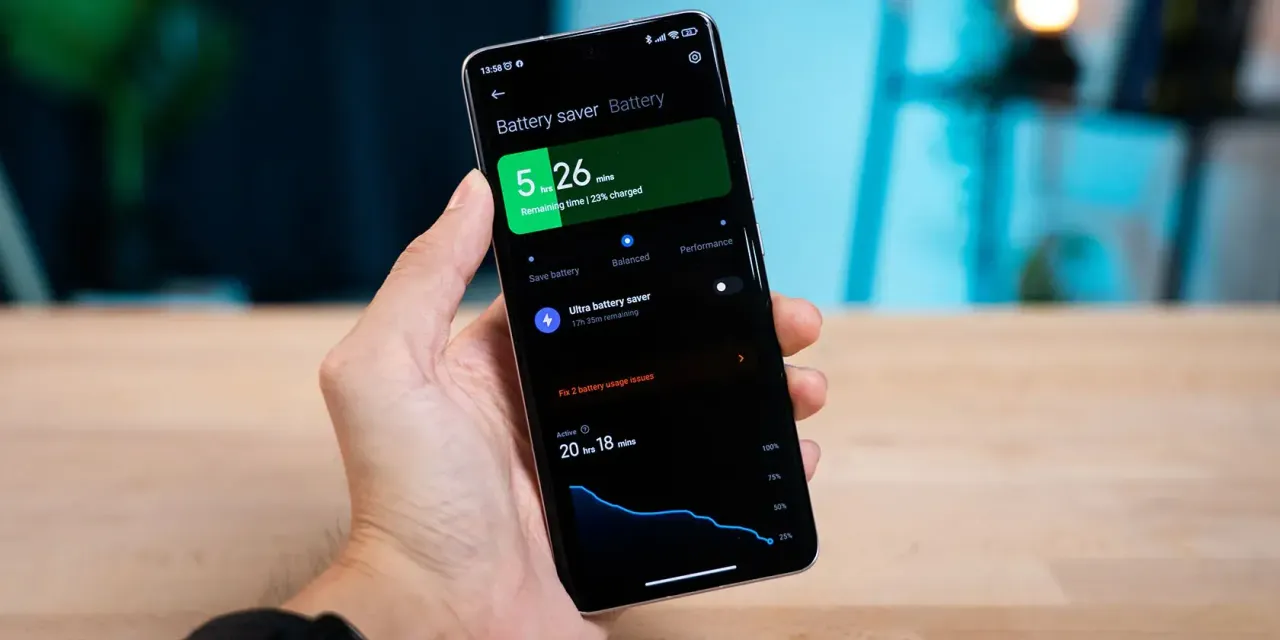
- Go to your device's Settings menu.
- Navigate to the "Battery" section (depending on your device model, the name might vary slightly).
- You'll see a list of apps and system features along with their corresponding battery usage percentage.
Managing Background Activity
Restrict Background Activity: Most Android devices allow you to restrict background activity for individual apps. This essentially limits their ability to run processes or refresh data in the background. Navigate to the "Battery" section in Settings, tap on the specific app, and explore options like "Background activity" or "Restrict background activity."
Disable Unnecessary Notifications: Constant notifications can not only be distracting but also contribute to battery drain. Review notification settings for each app and disable notifications for those you don't consider essential. This can be done within the app settings itself or through the device's notification settings menu.
Uninstall Unused Apps: It's easy to accumulate unused apps on your device. These apps can silently consume battery power in the background, even if you haven't opened them in a while. Regularly review your installed apps and uninstall any you no longer use.
Optimizing Google App Settings
Google Diagnostics: This feature collects data about your device and app usage to help Google improve the user experience. However, it can also run diagnostics reports in the background, consuming battery power. To disable it, navigate to Settings > Google > Usage and diagnostics and toggle the option off.
Location Services: Location services are essential for apps like maps and navigation. However, constantly enabling location services can drain your battery. Consider adjusting location settings to "Battery saving" mode, which uses a combination of Wi-Fi, cellular network, and GPS to determine location while minimizing battery impact.
Automatic App Updates: While automatic app updates ensure you always have the latest features and security patches, they can occur in the background and consume battery power. You can choose to update apps manually or set them to update only when connected to Wi-Fi to minimize battery drain from data usage.
Additional Battery Saving Tips
Adjust Screen Brightness: The display is a major source of battery consumption. Lowering screen brightness levels can significantly improve battery life. Utilize automatic brightness settings whenever possible, or manually adjust brightness to a comfortable level.
Enable Battery Saver Mode: Most Android devices offer a built-in battery saver mode that reduces background activity, limits performance, and optimizes battery usage. This mode is ideal for situations where you need to conserve battery life.
Disable Bluetooth and Wi-Fi When Not in Use: Leaving Bluetooth and Wi-Fi constantly enabled can contribute to battery drain. Make a habit of disabling these features when not actively using them (e.g., listening to music via Bluetooth headphones or connected to a Wi-Fi network).
Use Dark Mode (if available): Several Android versions and many apps now offer a dark mode theme. Dark mode reduces the amount of white light emitted by the display, which can lead to slightly improved battery life, especially on devices with OLED displays.
Manage Auto-sync: Auto-sync functionality allows apps to automatically synchronize data in the background. This can be useful for apps like email or social media, but it can also contribute to battery drain. Review your auto-sync settings and disable it for apps where background data synchronization isn't critical.
Keep Software Updated: Running outdated software versions on your device can sometimes lead to inefficiencies that contribute to battery drain. Regularly updating your Android operating system and installed apps ensures you benefit from the latest battery optimizations and bug fixes.
Consider Third-party Battery Management Apps: There are various third-party battery management apps available on the Play Store. These apps can provide additional insights into battery usage and offer features to manage background processes and optimize battery life. However, it's important to choose reputable apps with good user reviews and be cautious about granting excessive permissions.




Loading