If your Android phone runs out of battery too fast, the screen or your favorite apps may not be the only cause. Some features keep working in the background, even when your phone is in your pocket.
A few changes in your settings could help reduce this drain. The steps below use Samsung Galaxy menus, but similar options are available on other Android phones.

1. Turn off Wi-Fi and Bluetooth scanning
Android can scan for nearby Wi-Fi networks and Bluetooth devices to improve location accuracy. These scans may continue even when Wi-Fi and Bluetooth are turned off from Quick Settings.
To stop them:
- Open Settings and go to Location.
- Tap Location services.
- Turn off Wi-Fi scanning and Bluetooth scanning.
Keep in mind that this may affect some services that rely on location data.
2. Limit apps running in the background
Some apps keep syncing data or performing tasks when you are not using them. Social media and food delivery apps are common examples.
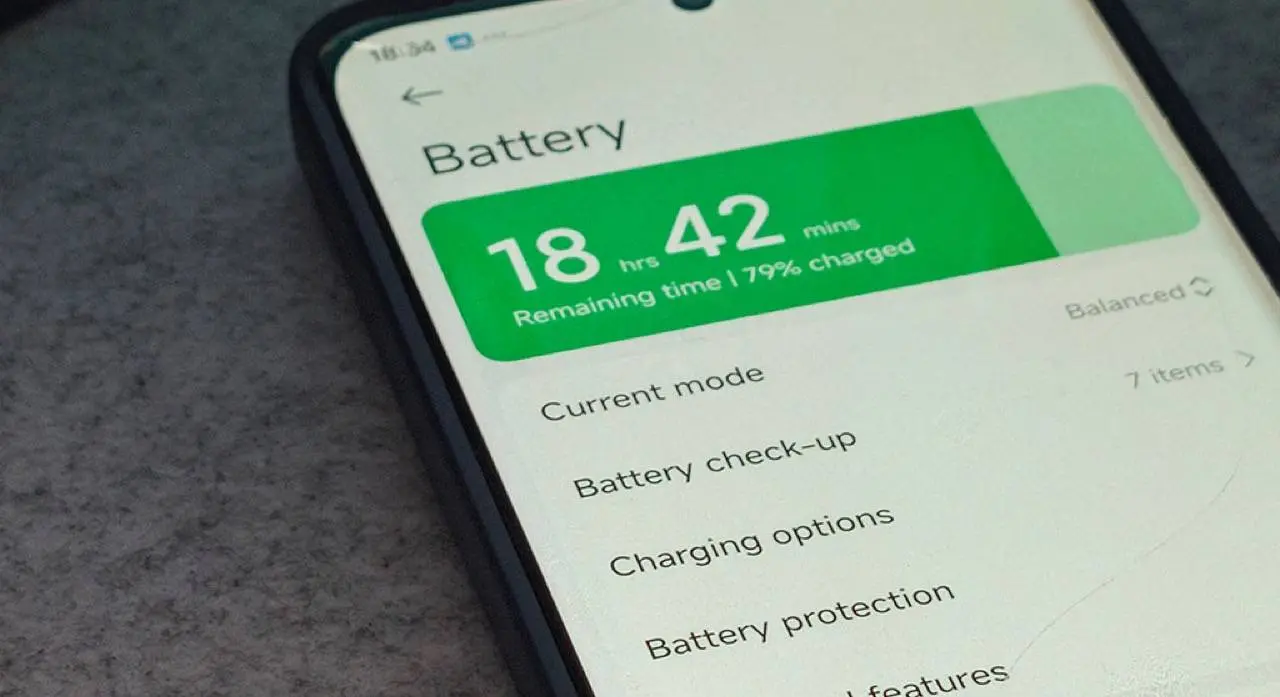
On Samsung Galaxy phones, open Settings > Battery and look for the background usage controls. Apps are usually placed into groups such as Unrestricted, Optimized, and Restricted.
Restricted mode limits background activity. However, it may also delay notifications and syncing. Use it only for apps that do not need to update all the time.
3. Switch to LTE when 5G coverage is weak
When 5G coverage is poor, your phone may keep searching for a stronger signal or switch between network types. This can increase power use and make the phone warmer.
On Samsung Galaxy phones, go to Settings > Connections > Mobile networks > Network mode and select LTE instead of 5G.
If you spend much of your day connected to Wi-Fi, you can also turn off Mobile data always active in Developer options. This stops the phone from keeping mobile data active when Wi-Fi is connected.
Small changes can make a difference
These settings will not guarantee a specific increase in battery life. The results depend on your phone, signal strength, and the apps you use.
Try one change at a time and check your battery usage. That way, you can see which setting actually helps your phone.
Popular News
Latest News