Preserving your text messages and iMessages as PDF files can be quite useful, especially when you need to save, organize, or share specific conversations. With this comprehensive guide, you'll be able to export your messages from your iPhone, iPad, and Mac with ease. This article will walk you through the different methods available to achieve this. We’ll also add some handy tips for making the most out of your saved message files.
Why Export iPhone Messages as PDF?
There are several reasons why you might want to export your iPhone messages as a PDF:
- Proof: When you need to submit your message conversation as proof for legal or personal reasons. Having it in a PDF format makes it easy to print and share.
- Sharing: If you want to send your iPhone texts to someone else via email, WhatsApp, or other communication methods. A PDF file is a convenient and widely accepted format.
- Transitioning: If you're moving from an iPhone to an Android device. Exporting your texts as a PDF allows you to read them later on your new phone.
Export iPhone Messages as a PDF Using Your Mac
Using your Mac is arguably the best way to export your chats as a PDF because it is the only built-in method. Here's how to do it:
Step 1: Set Up Your Mac's Messages App
First, open the Messages app on your Mac. You should see your iMessage and iPhone SMS conversations here. If you don't, follow these steps:
- Set up your Mac's Messages app and sign in to iMessage using your Apple ID.
- Turn on Messages in iCloud to sync your messages across devices.
- Set up Text Message Forwarding to see your iPhone SMS inside your Mac's Messages app.
Step 2: Select a Conversation
Select a conversation from the Messages app sidebar on your Mac.
Step 3: Print the Conversation
From the top menu bar, click File > Print.

Image Source: IDB
Step 4: Save as a PDF
Click the PDF box from the bottom or click the arrow next to PDF and choose Save as PDF.
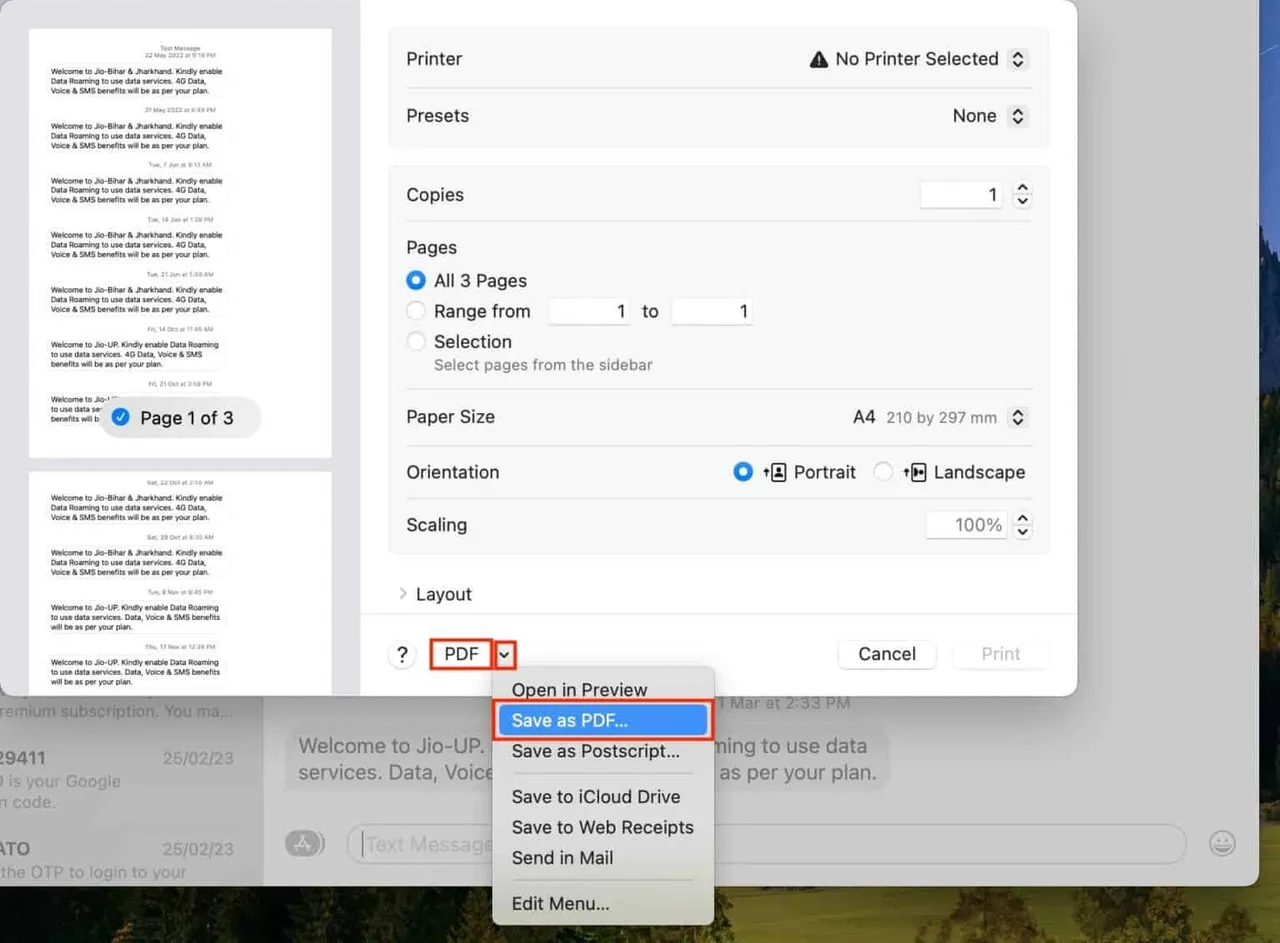
Image Source: IDB
Step 5: Rename and Save the File
Finally, rename the file, choose a location, and click Save. Your conversation is now saved as a PDF file, and you can open it to review your messages.

Note:
- Media (images, videos, docs, etc.) will appear as empty placeholders in the PDF. To save them, export them from the Messages app to a folder or other appropriate app.
- If the Messages app crashes when exporting a group conversation or a long chat with lots of media, try restarting your Mac or updating it to the latest version of macOS.
Save iMessage and SMS as PDF from iPhone or iPad
There is no built-in method to save your iMessage and SMS conversations as a PDF directly from your iOS device. However, there are workarounds, such as taking screenshots of the conversation and then converting them into a PDF file.
Method 1: Stitch Message Screenshots and Save as a PDF
- Take screenshots of your conversation on your iPhone or iPad.
- Use an app like Picsew to capture a screenshot of the whole text thread and then save it as a PDF.
- Additionally, you can combine several screenshots vertically and then convert the final long image into a PDF.
Method 2: Make a PDF Using Multiple iPhone Photos
If you prefer not to stitch screenshots together, you can turn all individual screenshots into a PDF file straight from your iPhone or iPad and save it to the Files app.
Tips for Organizing Your Exported Messages
Once you've exported your text messages and iMessages as PDF files, it's essential to keep them organized. Here are some tips to help you manage your exported message files:
- Choose a Consistent Naming Convention: Use a specific format for naming your PDF files, such as including the conversation participants' names and the date.
- Use Folders to Organize Files: Create folders for different types of conversations, such as personal, work, or group chats.
- Use Cloud Storage: Save your exported messages to a cloud storage service like iCloud, Google Drive, or Dropbox to access them from any device.
Additional Tips and Tricks
Here are some extra tips and tricks for making the most out of your exported message files:
- Print Your Messages: If you need to submit your conversation as proof or for other purposes, you can easily print your message files. You can do this directly from your Mac or using a third-party app on your iPhone or iPad.
- Share Your Messages via Email: If you need to send your exported messages to someone else, you can easily attach the PDF files to an email.
- Convert Images and Other Media to PDF: If you want to keep your images, videos, or other media files alongside your exported messages, you can use dedicated apps or online tools to convert them into PDF format.
Frequently Asked Questions
Here are some frequently asked questions about exporting text messages and iMessages as PDF files:
Q: Can I export messages from third-party messaging apps like WhatsApp or Facebook Messenger?
A: Yes, you can export messages from these apps using similar methods as described in this article. Most third-party messaging apps have built-in options to export conversations as text files or other formats, which can then be converted to PDF using dedicated apps or online tools.
Q: I lost my iPhone or iPad. Can I still export my messages as PDF files?
A: If you had enabled Messages in iCloud or backed up your device to iTunes or iCloud, you could still access your messages. You can restore your messages to a new device or access them through the Messages app on your Mac.
Q: Can I export messages from an Android device as PDF files?
A: Yes, there are several apps and methods available for exporting messages from Android devices as PDF files. You can search for dedicated apps in the Google Play Store or use online tools to convert your message files into PDF format.
In conclusion, exporting your text messages and iMessages as PDF files from your iPhone, iPad, and Mac is a useful way to preserve and share your conversations. With this step-by-step guide, you'll be able to export your messages using various methods and keep them organized for easy access.
Popular News
Latest News
Loading