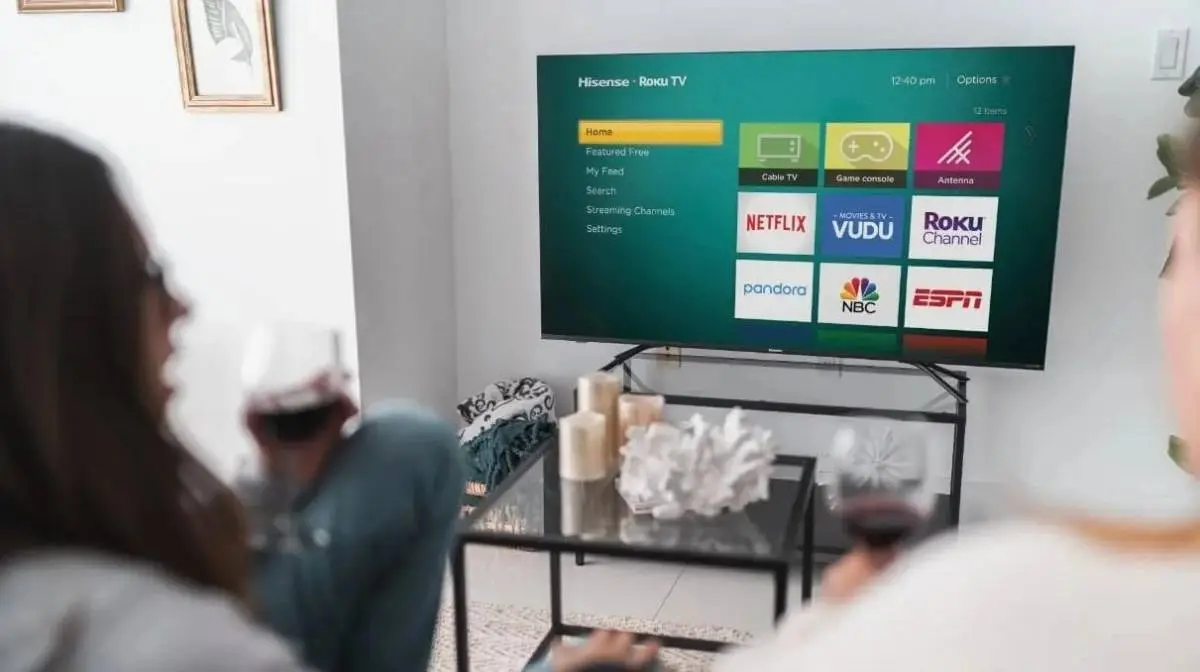
A new Smart TV should give you a better picture than your old television. Yet, the colors may look too bright, movies may have strange motion, and the screen may change its brightness on its own.
This does not always mean your TV has a problem. Factory settings are often designed to make the picture stand out under the bright lights of a store. Change these five settings, and you may get a much better picture at home.

1. Turn Off Motion Smoothing
Have you ever watched a movie that looked like it was filmed for a TV studio? Motion smoothing may be the reason. This feature adds extra frames to make movement look smoother.
It can help with sports, but it often gives movies the so-called “soap opera effect.” If you mainly watch films and TV shows, try turning it off. Depending on your TV brand, the setting may be called TruMotion, MotionFlow, or Auto Motion Plus.
2. Choose Cinema or Filmmaker Mode
The Standard picture mode often makes colors look brighter to catch your eye in a store. At home, however, it can make skin tones look less natural and hide details in dark scenes.
Try Filmmaker Mode or Cinema Mode instead. These modes usually offer more natural colors and a picture closer to what the director intended. If you watch TV in a very bright room, you may still need to adjust the brightness.
3. Turn Off Energy Saving
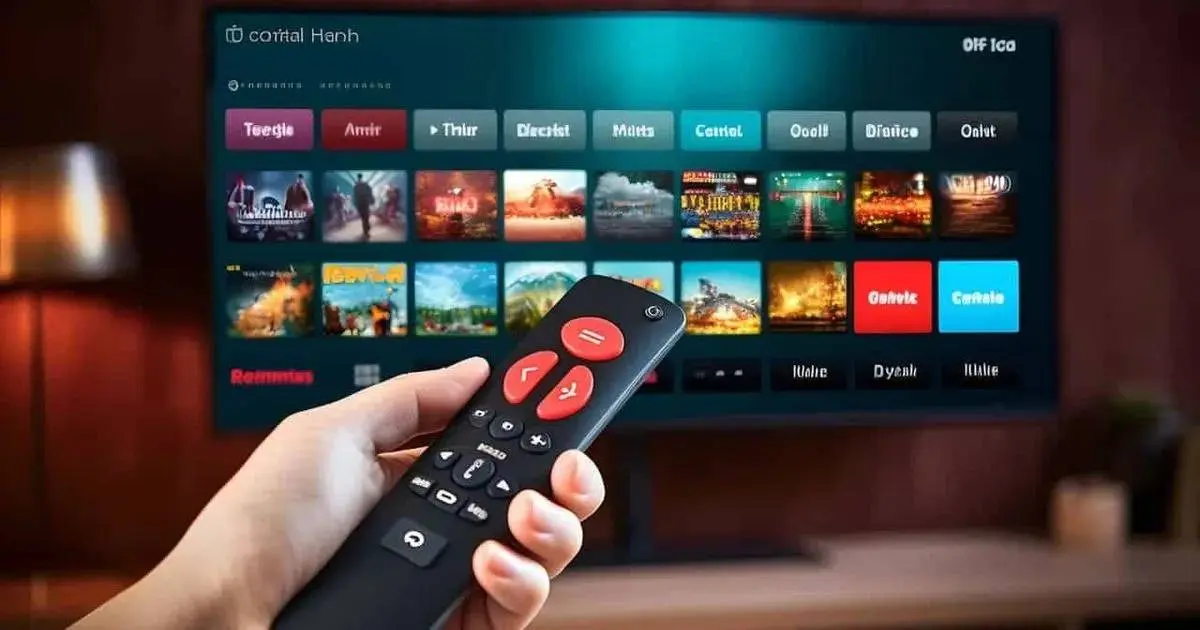
Does your TV screen sometimes get darker on its own? Check the energy-saving settings. Some TVs lower screen brightness to reduce power use.
You can usually find this option in the general settings menu. The exact name depends on the brand and model. Turning it off may help keep the picture at a more consistent brightness, especially when watching HDR content.
4. Check Game Mode and HDMI Settings
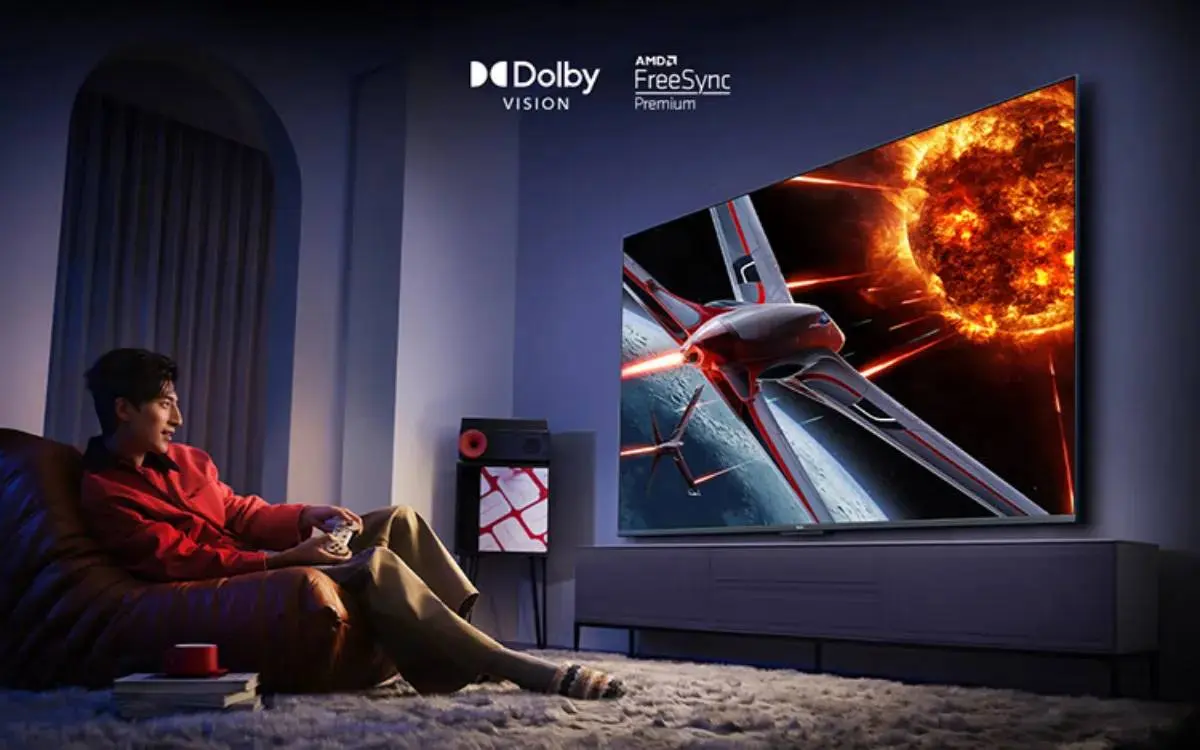
If you own a PlayStation or Xbox, turn on Game Mode to reduce input lag. This helps the TV respond faster when you press a button on your controller.
To use features such as 4K at 120Hz, HDR, and VRR, you may also need to enable enhanced HDMI input. Samsung calls this Input Signal Plus, while LG uses the name HDMI Ultra HD Deep Color. You will need a compatible TV, console, and HDMI cable to use these features.
5. Limit ACR Tracking
Automatic Content Recognition, or ACR, can identify what you watch on your TV. This data may be used to offer recommendations and show targeted ads.
If you would rather keep your viewing habits private, check the privacy settings. Depending on the brand, the feature may be listed as Live Plus, Interactive TV, or Viewing Information. Turning it off can limit this type of tracking, though other data collection may still apply.
The Bottom Line
You do not need to replace your TV just because the picture looks disappointing out of the box. Start with these five settings and see what changes. A few small adjustments can improve your viewing experience without costing you anything.
Popular News



Latest News
Loading