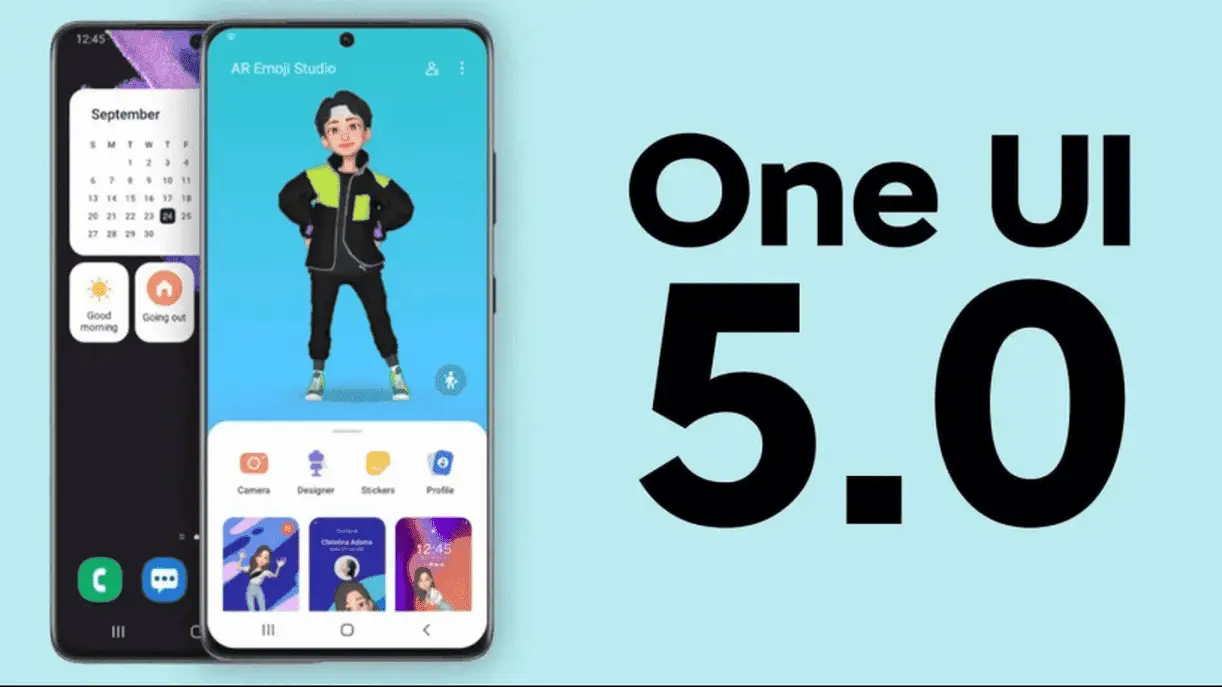

One UI 5.0 update (Android 13)
Bring more options to your palette
You can now find the right colour for you more easily. You can choose from up to 16 colour themes based on your wallpaper as well as themes unrelated to your wallpaper.
Overlay widgets on the home screen
You can combine multiple widgets of the same size into a single widget to save space on your home screen. Just drag a widget to where you want it, and then you can swipe back and forth between widgets and switch widgets.
See who's calling you at a glance
You can set a different calling background for each contact, so it's easy to see who's calling you with just a glance.
Only get notifications that you allow
When you open an app for the first time, you need to confirm whether you want to receive notifications from the app. So you can loudly Say No to apps.
Easily view App notifications
Is an app sending you frequent notifications? Now you can bring app notifications to the top via Notification Settings.
Choose the types of notifications the app can send
- You can now individually control whether apps can display pop-up notifications, app icon logos, and lock screen notifications. All types are allowed, some or not. It's up to you.
Stay informed with reminders for "today"
The new "Today" category will only show you what you need to be reminded about today. You can also see reminders for today's events at the top of Reminders.
Show and hide completed reminders
You can show or hide completed reminders in any category. Show to see what you've done, or hide to see what still needs to be done.
Choose the right view for your reminders
Choose Simple View to display more reminders on one screen, or choose a detailed view with details such as due dates and recurring conditions.
Set language for each app individually
- Want to use part A language apps and part B language apps at the same time? You can now choose the language you want for each app in the settings.
Edit lock screen wallpaper collection
After selecting a set of pictures as your lock screen or wallpaper, you can easily add or remove images from it.
Customize the blank line of the Samsung keyboard
You can choose which function keys and punctuation marks appear next to the row of spaces at the bottom of the keyboard.
Improved sound and vibration settings
The menu has been redesigned so you can find sound and vibration options more easily. Set your ringtone, and change volume and vibration intensity.

One UI 5.0 improve work efficiency
Extract text (OCR) from any image or screen
When using the Samsung keyboard, browser, gallery, or screenshot, you can quickly extract text from it and paste the result into a chat window, email, or document without manual typing.
Provide suggestions based on the text in the diagram
- When you take a picture with a phone number or website, or view a similar image in Gallery, Camera, or other apps, Samsung will suggest actions based on the text in the picture. For example, dial the number in the picture or visit the website in the picture.
Do more with connected devices
The Connected Devices menu has been added to Settings, making it faster and easier to find features that work with other devices like QuickShare, Smart View, and Samsung DeX.
Switch views with gestures
If you swipe in from the left, right, or bottom of the screen with two fingers, you can switch from full-screen to split-screen. Additionally, if you swipe in from any corner of the top of the screen with one finger, you can switch from full screen to pop-up view. Of course, gesture actions can be turned on or off in the settings.
Quickly open apps with split screen
Just drag the app from the Recents screen to the side of the screen where you want to open it.
Use multiple timers at the same time
You can now start a new timer at will in the Clock app, even if another timer is running at the same time.
Greater control over calendar event invitees
When you add an event to Google Calendar, you can choose whether to allow invitees to see other people invited to the event and choose whether they can invite more people.
Enhance Samsung DeX taskbar
- New search buttons make it easier to find apps to use, and you can right-click certain apps to quickly access in-app tasks. You can also customize which buttons and apps appear on your taskbar.
New notification red dot in "DeX"
If any new notifications have been received since the notification panel was last opened, Samsung will light up a red dot on the notification button in the taskbar.
Mini Calendar (DeX)
Clicking a date on the taskbar now opens a small calendar window, helping you quickly check upcoming events without having to open the full Calendar app.
Better support for physical keyboards
Now supports Samsung keyboard features such as emoji input and text correction
"My Files" search function upgrade
You can choose whether to search all files in the current folder or just files. You can also choose to search just the filename or search for information within the file, such as text in a document or location information in an image. After your search is complete, you can sort the results by name, date, size, or file type.
Redesigned digital health
The Digital wellness app has been redesigned and optimized for the features you need, like screen time reporting and app timers, while Bedtime Mode and Focus Mode have been moved to Bixby Routines.
Do more with Bixby Routines on One UI 5.0
Bedtime mode changed to Bixby Routines
- You can now manage Bedtime Mode in Bixby Routines. Bixby Routines lets you automatically do more while you sleep, like turning on Do Not Disturb or changing other settings.
Choose a mode based on your activity
Choose a mode based on what you're doing, like exercising, studying, or working, and choose what you want your phone to do in each situation. For example, don't interrupt while you're studying, and don't play music while you're exercising.
Easier discovery of preset events
The simplified layout makes it easier to find routines that work for you in Bixby Routines.
Quickly check preset events
Currently running events can be displayed at the top of the Bixby Routines screen so you can see what's going on and make changes if necessary.
More actions and conditions for your routine
When you turn on a certain mode, Samsung will automatically launch the relevant program for you. For example, open the assistant menu and adjust the left/right sound balance.
Express oneself with One UI 5.0
New emoji combinations
In the Samsung keyboard, more than 80 additional emojis can be used to create a pair of emoji. In addition to facial expressions, you can now combine expressions based on animals, food, and other objects.
New AR Emoji Stickers
Samsung offers new stickers for download, so you can find more suitable stickers to express your emotions.
More default emotes for your AR Emoji
When you create a new AR Emoji, 15 emojis are created by default, giving you more ways to express yourself.
Transparent Background for AR Emoji Stickers
Create stickers with transparent backgrounds that are more suitable for posting on social media.
Make a video with two emojis together
Use 2 different emojis to create funny videos that you can share with friends, set as call background, or display on your lock screen. A variety of dances and poses are included as templates.
Use any picture as your emoji background
In scene and mask mode, you can choose any image from the gallery as the background of your emoji.
Add stickers to your Google Calendar
When you add an event to Google Calendar, you can now add some stickers to easily identify the event at a glance. After adding a sticker to an event, the sticker will be visible in the calendar and agenda views.
Make stickers from any picture
Create reusable stickers from any picture in your gallery. Use the Lasso tool to select the content of the map, then add decorations or outlines.
New stickers in photo editor
60 new pre-installed emoji packs to decorate your pictures.
More ways to edit GIFs
You can trim and convert animated GIFs to a better size or shape. You can also decorate your GIFs with the same editing features as still images.
Rearrange expression buttons on Samsung keyboards
Press and hold emojis, stickers, and other buttons to rearrange them.
Find emoji directly from Samsung keyboard
Create preset Japanese facial expressions with keyboard symbols to spice up chats and texts. (*^^*).
One UI 5.0 Pictures and Videos
Get help with the pro mode
A help icon appears in Pro and Pro Video modes. Click the icons for tips and guidance on using the various lenses, options, and controls.
Histogram in Pro Mode
Use the histogram to check the brightness of each hue to help you get the perfect exposure.
One-handed zoom
Samsung compressed the size of the zoom bar you need to slide to zoom, so you can easily zoom in or out with one hand.
Easily return to photo mode
When you're using the camera mode located in the "More" menu, all you need is a "back" button that now takes you back to photo mode at any time.
Add watermark to pictures
Automatically add a watermark to the corner of each photo, including the date and time the photo was taken, or your phone model name, or other custom information.
Food photography mode now supports telephoto lenses
Samsung thinks it's better to use a telephoto lens for close-ups of food.
New story look
Stories automatically created in the gallery have been improved with an immersive slideshow view. Just tap or swipe to move between pictures and videos in stories.
Choosing a filter is easier
The filter selection menu has been simplified in the camera, photo editor and video editor. All filters are placed in a list, you can always find the filter you need for your image or video.
Open Bixby faster when you need it most with
Faster than ever
You can save Bixby commands on your phone so they don't require an internet connection and work faster.
No need to say "Hi, Bixby" when answering calls, turning off alarms/timers
When you have an incoming call, an alarm or a timer goes off, you don't have to say "Hi Bixby" to get help from Bixby. Just say keywords like "answer the phone" or "turn off the alarm."
One UI 5.0 ensure safety and reliability
Check your phone's security status at a glance
The new Security Dashboard in Settings can show if your phone has any security issues and help you fix them quickly.
Get help in an emergency
5 quick side presses to call emergency services without taking your phone out of your pocket and talking.
Emergency Contact List
Create a list of emergency contacts and people you need to contact in an emergency and use it for emergency contact on your watch and phone.
There will be reminders before sharing personal information
Samsung will ask you when you try to share a photo that contains sensitive information, such as a credit card, ID, or passport, so you can avoid accidentally sharing private content.
Website Security and Privacy Information
An icon will be added to the address bar of the Samsung browser to display the security status of the current website. Click the icon to learn what information the site collects and tracks.
Accessible to everyone
More accessibility options in the quick panel
You can add high-contrast fonts, colour inversion, colour adjustments, and colour filters to the quick panel for easy access.
Magnifier optimization
Turn on the Magnifier shortcut in Accessibility settings for quick access to the Magnifier feature. Magnifier uses your phone's camera to magnify real-world items so you can take a closer look or make them easier to read.
Voice assistance optimization
Various types of voice feedback can be selected to help you use your phone when you can't see the screen clearly. You can ask your phone to read what the keyboard is typing so you can be sure you're typing the correct letters, use Bixby Vision to identify nearby objects and tell you what they are, and open an explainer video of what's going on.
Improved support for braille displays
- TalkBack now provides native support for Braille displays without the need to install an additional application.
- Your braille display will work with most of your phone's functions, including the initial setup process.
- It now supports English, Spanish, Arabic and Polish.
Easily edit Accessibility buttons
Tap and hold the Accessibility button to quickly set the function you want for that button.
New Actions Available for Corner Actions
When you move the mouse to a corner of the screen, you can now click and hold, drag, drop, and go to the top or bottom of the screen.
Other changes
New notification layout
App icons are larger so you can more easily see which app is making a notification. Text alignment has also been improved for easier reading.
Screen incoming calls before answering them
Let the incoming call be answered automatically and ask the reason for the call. If you can't or don't want to talk, you can tap or enter a text and Samsung will read it to the caller.
Drag and drop bookmarks between folders
- Organize your Samsung Internet bookmarks by dragging and dropping them between folders.
- When using the mobile application on your computer, you can choose whether to play the sound from your mobile application or on your computer using the button in the title bar of the application.
Check battery health
Added battery health information to Device Care to help you check the status of your battery. Samsung will alert you if your battery's health has declined.
Virtual Memory
If you don't need or want the system to use any storage space, you can turn off the RAM Plus feature completely in Device Maintenance.
Display application name in app edge panel
Turn on Show app name so that the app's name appears below the App icon.
Galaxy Themes
Some themes may not be compatible with Android 13. If your theme is not compatible, your phone's default theme will be restored after the upgrade.
Loading