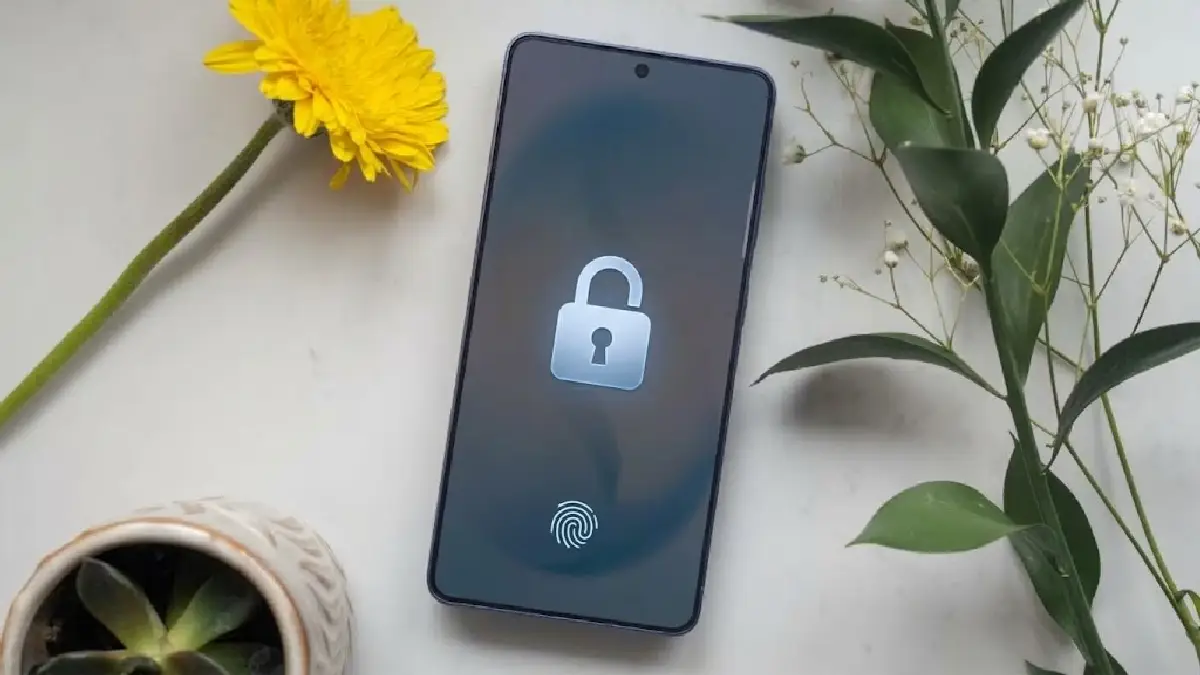
Forgetting a password can make a simple task much harder than it should be. This is especially true when you want to remove a Samsung account from your phone but cannot sign in. Depending on your situation, you may need to recover your account, unlock your device, or deal with extra security checks.
The good news is that you have a few options. Samsung's official recovery tools are the best place to start if you still have access to your account. If you are also locked out of your phone, a tool such as DroidKit may help with supported screen-lock issues. However, unlocking a phone is not the same as deleting a Samsung account online.
Quick Answer: Can You Delete a Samsung Account Without the Password?
The best way to remove a Samsung account is to recover its password first. Once you regain access, you can remove the account through your phone's settings.
If you cannot get past your phone's screen lock, DroidKit offers a guided screen-unlocking process for compatible devices. Keep in mind that this process may erase your data and does not guarantee that Samsung or Google account checks will be removed.
Method 1: Use DroidKit If Your Samsung Phone Is Locked
Sometimes, the main problem is not the Samsung account password. You may have forgotten your screen lock and cannot access the phone's settings. In this case, DroidKit's Screen Unlocker may help on supported devices.
The software runs on a computer and guides you through the available steps for your phone. Before you begin, check whether your device is supported and review the possible risks to your data.
How to Use DroidKit Screen Unlocker
- Step 1: Download and open DroidKit on your computer.

- Step 2: Select Screen Unlocker from the main menu.

- Step 3: Connect your Samsung phone to the computer.

- Step 4: Click Start and follow the instructions for your device.

- Step 5: Complete the supported process and check whether any account verification is still required.
Important: Screen unlocking may erase your phone's data. It also does not guarantee that Samsung or Google account verification will be removed.
Method 2: Recover Your Samsung Account Password
If you can access your phone, recovering your password is usually the simplest and safest option. It allows you to remove the account through the normal settings without using a screen-unlocking tool.
Follow these steps:

- Step 1: Visit the official Samsung Account website and select the password recovery option.

- Step 2: Follow the instructions to verify your identity and create a new password.

- Step 3: On your phone, open Settings > Accounts and backup > Manage accounts.

- Step 4: Select your Samsung account and tap Remove account.

- Step 5: Enter your new password or complete any verification steps if prompted.
The exact menu names may vary by phone model and Android version. If you no longer have access to your recovery email or phone number, contact Samsung Support to check which recovery options are available.
Can a Factory Reset Remove a Samsung Account?
A factory reset erases data and settings stored on your phone. However, it does not permanently delete your Samsung account from the internet.
It can also create another problem. Some Android devices use Google's Factory Reset Protection (FRP) to prevent unauthorized access after a reset. If this protection is active, you may need to enter the Google account details that were previously linked to the phone before you can finish setup.
For this reason, a factory reset is not the best first step if you simply want to remove a Samsung account. Try recovering your password before wiping the device.
If Google asks you to verify the previous account after a reset, see our guide on how to resolve Google sign-in problems after a factory reset.
FAQs
- Can I Remove a Samsung Account Without Losing Data?
In most cases, yes. If you can recover your password, you can remove the account through your phone's settings without performing a factory reset. Back up important data first, especially content synced with your Samsung account, because access to some services may change after removal.
- Does a Factory Reset Permanently Delete My Samsung Account?
No. A factory reset erases local data and settings, but your online Samsung account remains active. You must manage or delete the account separately through Samsung's account services.
- Can DroidKit Delete My Samsung Account?
DroidKit's Screen Unlocker is designed to help with supported phone screen-lock issues. It does not permanently delete your online Samsung account. You may still need your account credentials to remove the account or complete security checks.
- What If I Forgot Both My Screen Lock and Samsung Password?
Start by trying to recover your Samsung account password through Samsung's official website. If you also cannot unlock your phone, check whether DroidKit supports your device and review its data-loss risks before using it. Some security checks may still require the original account details.
Conclusion
If you want to delete a Samsung account without the password, start with Samsung's official recovery process. Once you regain access, you can remove the account through your phone's settings.
If you are also locked out of the device, DroidKit may offer another option for supported screen-lock problems. Just remember that unlocking the phone does not delete your online Samsung account, and a factory reset may trigger additional security checks. Choose the method that fits your situation and back up important data whenever possible.
Popular News
Latest News
Loading