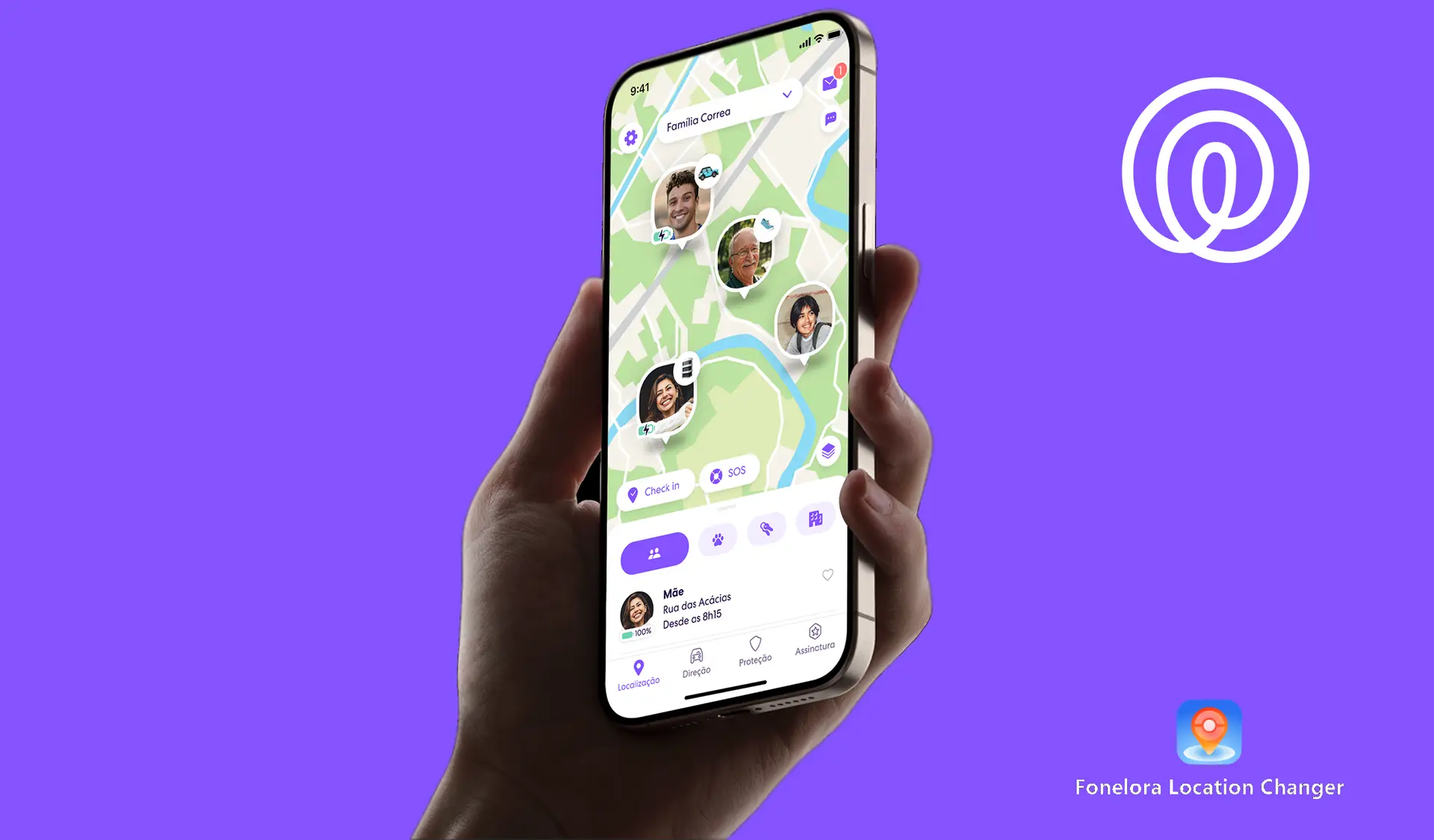
Sharing your location can be useful for keeping family and friends connected, but there are times when having more control over your digital whereabouts matters just as much. Whether you're looking for greater privacy or simply want to manage the location information your device shares, GPS-changing tools offer an alternative to turning location services off completely. For those who want to explore this option, tools such as Fonelora Location Changer and Fonelora Go make it possible to change reported GPS coordinates on supported devices. But how do they work, and can they change your location without triggering “Location Paused” alerts on Life360?
Location-sharing tools such as Fonelora Location Changer and Fonelora Go offer another way to manage the coordinates reported by compatible devices. Before using them, however, it helps to understand the difference between disabling location sharing and changing your reported GPS position.

Does Life360 Notify Others When You Change Your Location?
Life360 uses your phone's location data to show where you are on the map. If the app cannot access this data, other Circle members may see a paused, unavailable, or outdated location. This can happen if you disable location permissions, turn off location services, or lose your network connection. Life360 may then continue showing your last known location instead of updating it.
A GPS changer works differently from turning off location sharing. Rather than stopping updates, it attempts to make your phone report a different location. However, Life360 may not accept the new coordinates, and warnings may still appear.
Key Points
- Life360 may display “Location Paused” or an unavailable status when location sharing is interrupted.
- GPS-changing tools can modify reported coordinates without simply disabling location services, but results are not guaranteed.
- Fonelora Location Changer offers desktop-based GPS controls, while Fonelora Go supports location changes on compatible iPhone and Android devices.
- iPhone setup may require a compatible Wi-Fi connection or hotspot, while Android supports mock locations through Developer Options.
- Life360 may still display warnings or outdated location data when virtual GPS coordinates are used.
- Device compatibility, operating system versions, and app behavior can affect the results.
How to Change Your Life360 Location With Fonelora
Fonelora offers two products for users interested in changing their device's reported GPS location: Fonelora Location Changer for desktop use and Fonelora Go for supported mobile devices.
Both options are designed to let users select a destination and apply virtual coordinates, although their setup processes and compatibility requirements differ.
- Desktop: Connect your phone to a computer, select a destination, and apply virtual GPS coordinates.
- Fonelora Go (Mobile): Change GPS coordinates directly on supported iPhone and Android devices after setup, without connecting to a computer for every change.
Fonelora Location Changer for Desktop
Fonelora Location Changer runs on a computer connected to a compatible smartphone. Users can select a destination on the software's map and apply the corresponding virtual location.
This option may suit those who prefer a desktop interface for managing location changes. It also lets users configure a new location from their computer instead of relying only on their phone's interface.
Fonelora Go for Mobile Devices
Fonelora Go supports location changing on compatible iPhone and Android devices. Once setup is complete, users can choose a destination and apply it using Teleport Mode.
The mobile option may be more convenient for users who want to change locations without connecting their phone to a computer each time. However, setup requirements vary by operating system, and some devices may need an additional connection.
Neither tool guarantees that Life360 will accept a virtual location without displaying warnings. Check the compatibility guide before choosing a solution.
How to Change Your Life360 Location on iPhone
Changing a reported GPS location on an iPhone can involve additional setup because iOS handles location access differently from Android. Fonelora Go may require a compatible Wi-Fi connection or mobile hotspot, depending on the supported setup method. Cellular data alone may not meet its requirements.
If your device and iOS version are supported, follow these general steps:
- Step 1: Connect your iPhone to a compatible Wi-Fi network or hotspot.

- Step 2: Open Fonelora Go and complete the setup instructions for your device.

- Step 3: Search for the destination you want to select.

- Step 4: Choose Teleport Mode and follow the instructions to apply the virtual location.

- Step 5: Open Life360 and check the location displayed on the map.
The exact procedure may vary depending on the iPhone model, iOS version, and software configuration. If the location does not update as expected, consult the tool's official troubleshooting instructions rather than assuming the change was successful.
How to Change Your Life360 Location on Android
Android provides a mock-location feature through Developer Options, allowing compatible applications to supply simulated location data. The feature is available on many Android devices, although the menu names and setup requirements can vary by manufacturer.
To configure a compatible location-changing app, follow these general steps:
- Step 1: Open Settings and navigate to About Phone.

- Step 2: Find Build Number and tap it seven times, if required, to enable Developer Options.

- Step 3: Return to Settings and open Developer Options.
- Step 4: Find Select mock location app and choose Fonelora Go, if it is compatible and appears in the list.

- Step 5: Open Fonelora Go, select a destination, and follow the instructions for Teleport Mode.

- Step 6: Open Life360 to check the location and status displayed.

Some Android phones may require extra setup or permissions. If you cannot find the mock-location option, check your phone manufacturer's instructions and the software's compatibility guide.
Keep in mind that not all apps accept simulated locations. Even after setup, Life360 may show an outdated location or report that location information is unavailable.
Why Does Life360 Show “Location Paused”?
A “Location Paused” or unavailable status generally indicates that Life360 is not receiving the expected location updates. The cause can range from a change in app permissions to a network problem or a device setting.
Here are some common situations and their possible effects:
| Action | Possible Life360 Status |
| Disable location permissions | Location Paused |
| Turn off GPS | Location unavailable |
| Enable Airplane Mode | Offline or last known location |
| Use a GPS changer | Virtual location may appear |
The results may vary depending on your phone, network connection, settings, and Life360's behavior. Turning off location sharing stops location updates, while a GPS changer attempts to report a different location. However, neither method guarantees how Life360 will display your location.
![Google Maps: Improved Navigation in Just Two Steps [How To]](https://r.testifier.nl/Acbs8526SDKI/resizing_type:fill/width:1920/height:1280/plain/https://s3-newsifier.ams3.digitaloceanspaces.com/gizchina.com/images/2025-06/google-maps-ftr.jpg@webp)
Frequently Asked Questions
- Can You Pause Life360 Without Anyone Knowing?
There is no reliable guarantee that you can stop sharing your location without other Circle members noticing. Depending on the settings and circumstances, Life360 may display a paused or unavailable status. Changing GPS coordinates is a separate process, but it does not guarantee that the change will go unnoticed.
- Does Life360 Notify Others When Location Is Turned Off?
Circle members may see that a location is paused or unavailable when a device stops sharing updates. Whether Life360 also sends a separate push notification depends on the situation and the app's current notification behavior.
- Can Life360 Detect a Fake GPS Location?
A GPS-changing tool may alter the coordinates reported by a compatible device, but this does not guarantee that Life360 will accept them. Simulated locations, outdated data, or inconsistencies can affect what the app displays. The exact behavior may change with app updates and device configurations.
- Do You Need a Computer to Change Your Life360 Location?
Not necessarily. Fonelora Location Changer provides a desktop-based option, while Fonelora Go offers mobile location-changing features for supported devices. The available setup methods depend on the phone, operating system, and software compatibility requirements.
Final Thoughts
Managing your location on Life360 involves more than simply turning GPS on or off. Disabling location access can interrupt updates, while GPS-changing tools attempt to modify the coordinates reported by a device. These approaches work differently and can produce different results.
Fonelora Location Changer offers desktop controls for compatible smartphones, while Fonelora Go provides a mobile alternative for supported iPhone and Android devices. Before using either option, review its setup requirements and compatibility information.
Ultimately, no location-changing tool can guarantee that Life360 will display a virtual position without warnings. Understanding how location sharing works and what each tool can actually do will help you make a more informed decision.
Popular News

Latest News
Loading