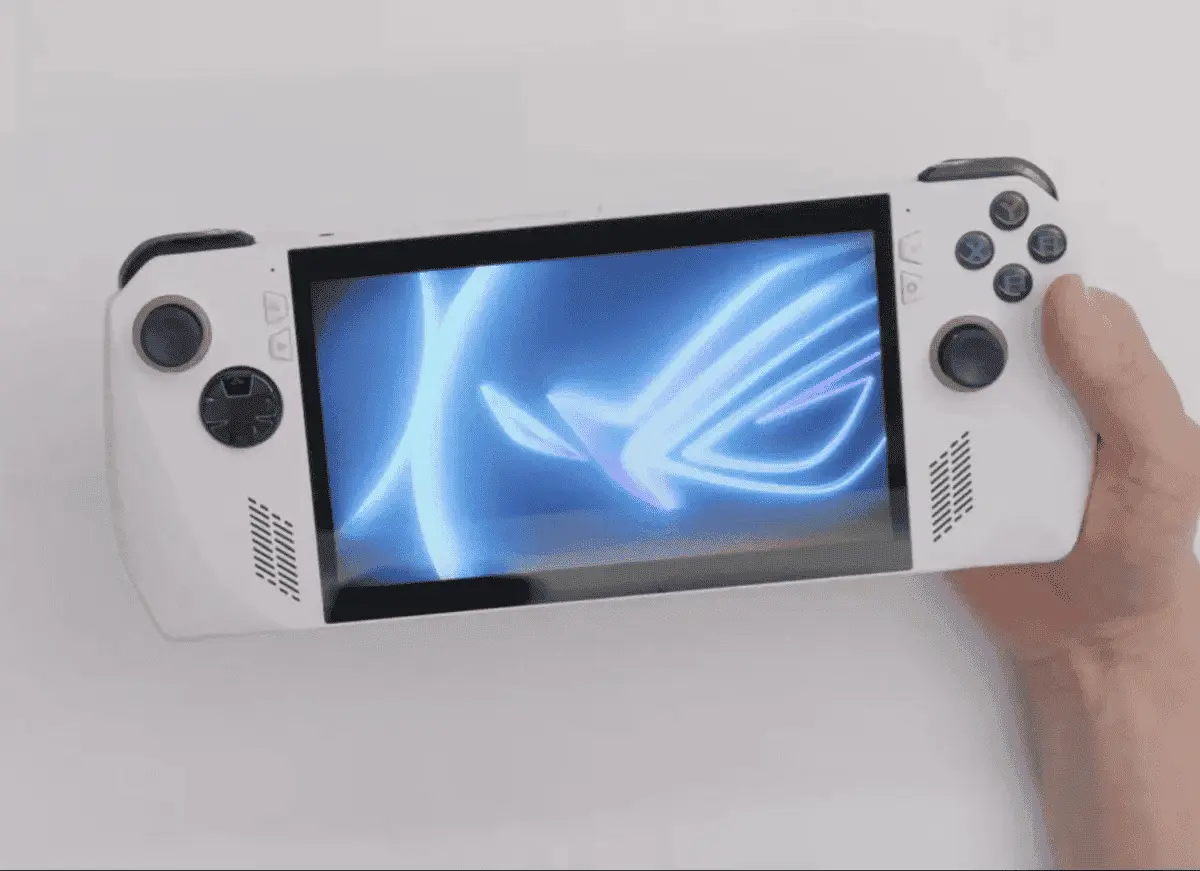
The Steam Deck is a handheld gaming device that allows you to play your favourite PC games on the go. However, the device's small screen size may not be ideal for some gamers. Fortunately, you can use your iPad as a screen for your Steam Deck. Thanks to its superb performance, ergonomic design, simple user interface, and an extensive game library filled with the top PC titles, the Steam Deck provides a pleasurable gaming experience. Valve's handheld features are simply unmatched by rivals like the Asus ROG Ally and AyaNeo 2S. Possibly the best gaming handheld available is the Steam Deck.

Although the Steam Deck has raised the bar for handhelds, some users may find its 7-inch LCD display to be too tiny and low resolution. If you choose, you can connect to an external monitor, although that compromises the portability of the Steam Deck. Using one of the best iPads as a Steam Deck display is a great choice if you want a bigger display while still being mobile. The Steam Deck may be displayed on an iPad both wirelessly and with a wire. We'll demonstrate the wireless approach below. In this article, we will show you how to use your iPad as a screen for your Steam Deck.
Requirements
Before we talk about how to use your iPad as a screen for Steam Deck, let us take a look at the requirements
- A Steam Deck
- An iPad
- The Steam Link app installed on your iPad
- A Bluetooth controller
The Steam Link app, which feeds everything that is happening on your Steam Deck to the iPad, is the simplest way to use your iPad as a screen for Steam Deck. Before beginning, make sure the iPad and Steam Deck are both linked to the same Wi-Fi network.
Steps to use iPad as a screen for Steam Deck
Follow these steps to use your iPad as a screen for your Steam Deck:
1. Turn on your Steam Deck and make sure it is connected to the internet.
2. On your iPad, open the App Store app and search for "Steam Link."
3. Download and install the Steam Link app on your iPad.
4. Once the app is installed, open it and sign in to your Steam account.
5. On your Steam Deck, open the Steam app and select "Settings."
6. In the "Settings" menu, select "Remote Play."
7. Turn on "Remote Play" and select "Pair Steam Link."
8. Follow the on-screen instructions to pair your Steam Deck with your iPad.
9. Once your Steam Deck is paired with your iPad, you can use your iPad as a screen for your Steam Deck.
2. On your iPad, open the App Store app and search for "Steam Link."
3. Download and install the Steam Link app on your iPad.
4. Once the app is installed, open it and sign in to your Steam account.
5. On your Steam Deck, open the Steam app and select "Settings."
6. In the "Settings" menu, select "Remote Play."
7. Turn on "Remote Play" and select "Pair Steam Link."
8. Follow the on-screen instructions to pair your Steam Deck with your iPad.
9. Once your Steam Deck is paired with your iPad, you can use your iPad as a screen for your Steam Deck.

Tips for using iPad as a screen for Steam Deck
Here are some tips to help you get the most out of using your iPad as a screen for your Steam Deck:
- Use a Bluetooth controller: While you can use the touch controls on your iPad, it is much easier to play games with a Bluetooth controller.
- Use a stable internet connection: For the best experience, make sure your iPad and Steam Deck are connected to a stable internet connection.
- Use a stand: To make it easier to play games on your iPad, consider using a stand to prop it up.
Editor's opinion
Additionally, I will personally recommend the use of a Bluetooth controller for a better gaming experience. Some sources suggest that an iPad with a cellular network can be used as a monitor for Steam Deck by enabling USB tethering. It is also worth noting that there are accessories like the Accsoon Seemo and Gamevice for iPad that can enhance the gaming experience on an iPad. However, these are the personal recommendations of the author.
Conclusion
Using your iPad as a screen for your Steam Deck is a great way to enjoy your favourite PC games on the go. With the Steam Link app and a Bluetooth controller, you can turn your iPad into a portable gaming machine. So, follow the steps above and start playing your favourite games on your iPad today!
Popular News
Latest News
Loading