How to Install Siri on your iPad 1 With WordJelly and Ac!d
How to's | GuidesMonday, 18 June 2012 at 09:15

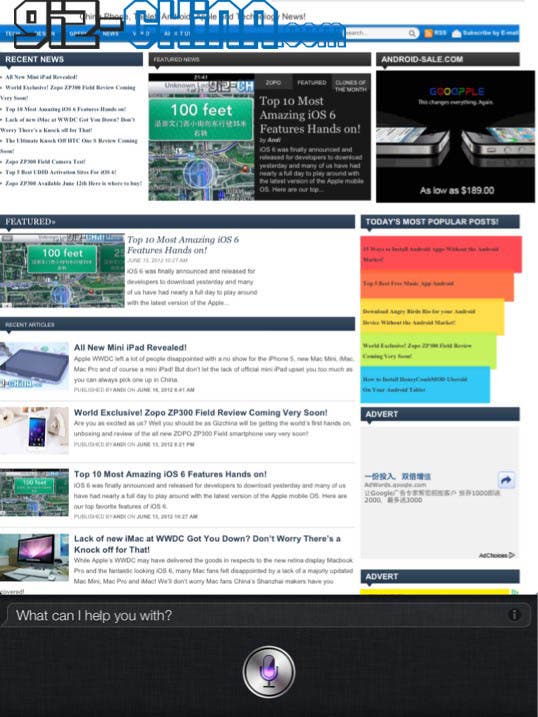
We’ve waited a few days for iPad 1 owners to mourn the fact that Apple won’t be releasing iOS 6 on the original Apple tablet before posting this Siri how to. So all you iPad 1 owners out there grab your iPad and show Apple what it can really do.
This how to is going to show you how to install Siri the talking personal assistant found on Apple’s iPhone 4S on to your iPad running iOS 5.1.1. We’re pretty sure these same instructions will work on the iPod, iPad 2, iPhone 3GS and iPhone 4 (iPhone 4 has been tested and it works) but at the time of writing we haven’t tested all those devices.
This how to is going to show you how to install Siri the talking personal assistant found on Apple’s iPhone 4S on to your iPad running iOS 5.1.1. We’re pretty sure these same instructions will work on the iPod, iPad 2, iPhone 3GS and iPhone 4 (iPhone 4 has been tested and it works) but at the time of writing we haven’t tested all those devices.
But we have fully tested the iPad 1 and we can say it runs Siri extremely well! Best of all though installing Siri and having it work like it does on the iPhone 4S is extremely easy!
How to install Siri on the iPad 1
Before we start with installing Siri on your iPad 1 please check you iPad is up to date and running iOS 5.1.1.
To find out if you’re up to date, plug your iPad in to your computer and start iTunes. From there you can see which iOS version you are running
Now that you know you are on the correct iOS version you are going to have to Jailbreak your iPad running iOS 5.1.1 using Absinthe. There is also the Redsnow tool, but we could only get Absinthe to work.

Download Absinthe (a Google search will give you a link), connect your iPad and press the ‘Jailbreak’ button.
This could take sometime so go and make a coffee of something.
Installing Siri on the iPad 1
Once you are on iOS 5.1.1 and have jailbroken your iPad you can now get on with installing Siri.
In this case we are going to install Siri via a port of the popular Spire tool in this case the version called Ac!d and a free Siri server call WordJelly.
To get Ac!d on your iPad just follow these simple steps.
- Open Cydia
- Go to Sources > Edit > Add
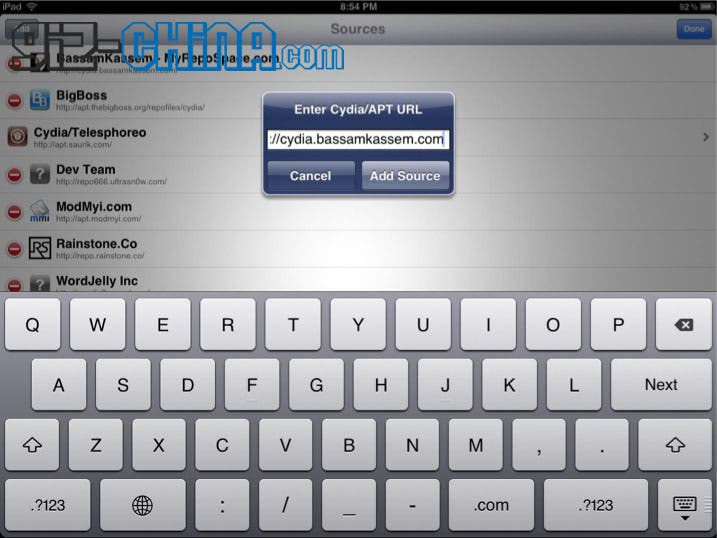
- Then add the following sources: cydia.bassamkassem.com and http://wordjelly.com/repo
- Once added download Ac!d Siri for iPad.
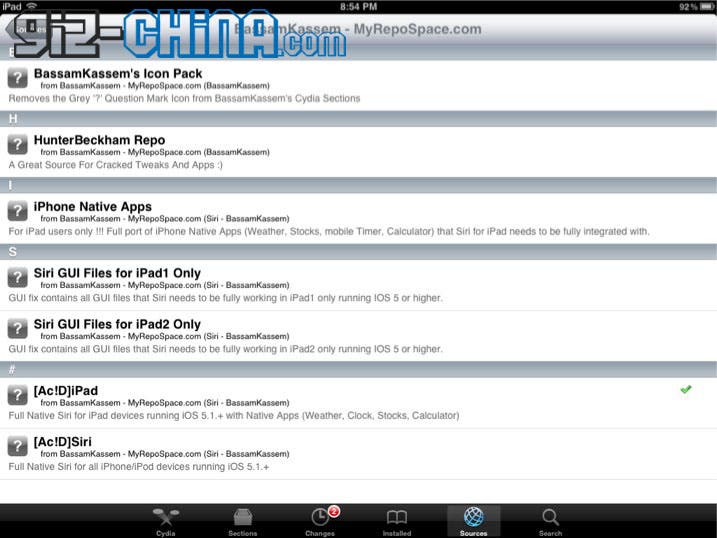
- After installing you will need to restart your iPad.
- Go back in to Cydia and install ackage that says Control Panel 5.0.1/5.1.1
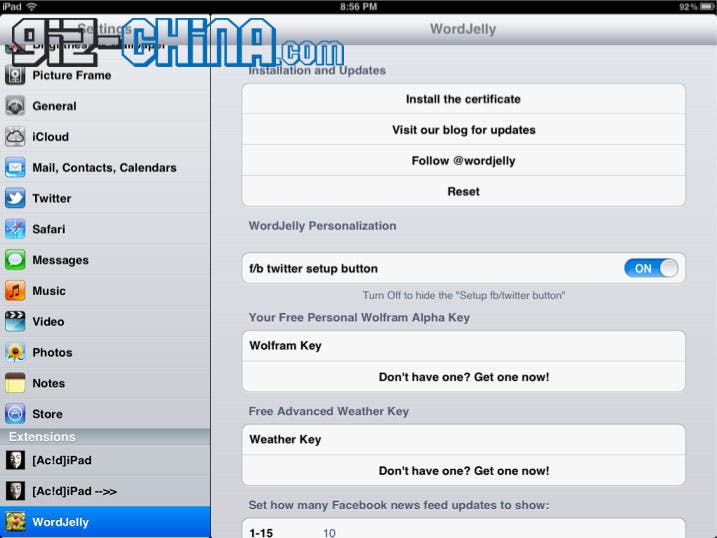
- Go to Settings >Wordjelly. Press the install certificate button. Install the certificate.
- Dont forget to turn on Siri from Settings->Siri
- Reboot your iPad 1.
Enjoy Siri on your iPad!
Let us know how Siri works for you on your original iPad in the comments below.
loading
Popular News




Latest News
Loading