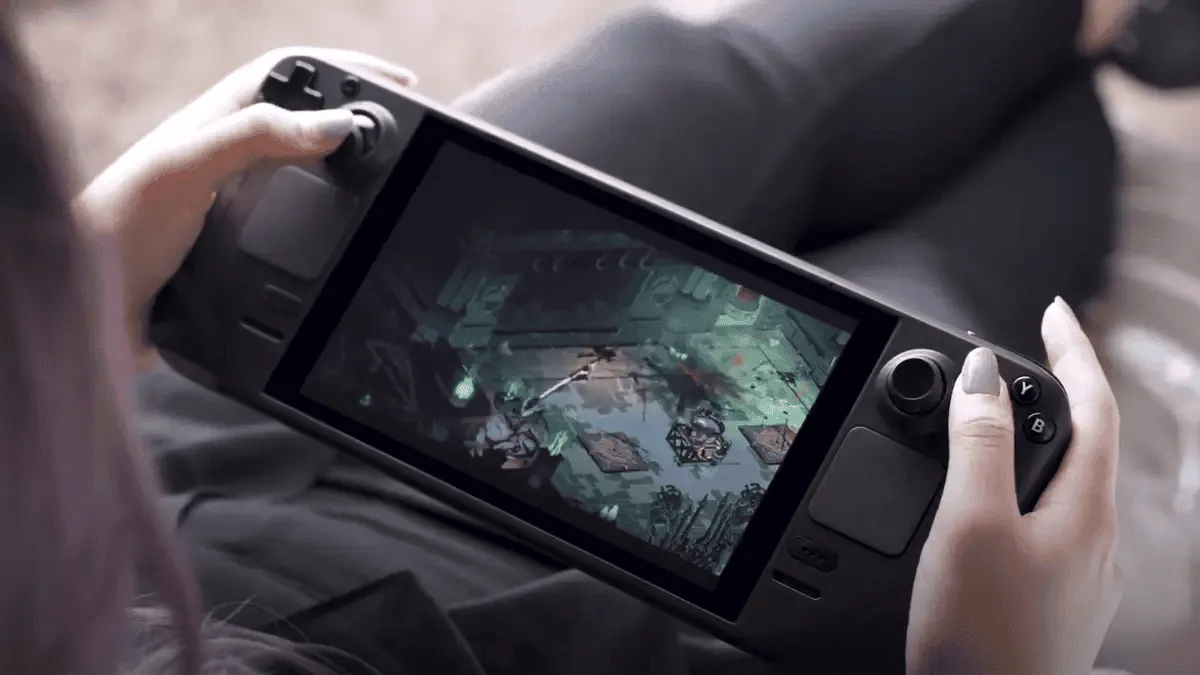
These days, a lot of people enjoy playing games directly on their smart devices. However, some prefer to stream games from their PC. That’s where the Steam Deck comes in handy. Developed by Valve Corporation, the Steam Deck is a handheld gaming controller that simplifies controlling PC games. Its compact and portable design makes it a great choice for gaming on the go. There are many advantages in playing with the Steam Deck, and one of the greatest advantages is its versatile controller. The console comes with familiar buttons and triggers that make controlling in-game actions easy! Due to its form factor, it can even work nicely as a controller for your PC. In this guide, we will teach you how to set up the Steam Deck as a PC Controller. (Source: XDA-Developers)
The great news is that your Steam Deck can easily connect to your PC! There are two straightforward ways to use it as a PC controller—one is a bit simpler than the other. Here's how to turn your Steam Deck into a regular PC controller.
Using Steam Deck as PC Controller Via Remote Play
Using Remote Play is a quick and easy way to turn your Steam Deck into a PC controller. Here’s how you can set it up:
-
-
- Install the Game: Ensure the game you want to play is installed on your main PC. If it's not on Steam, add it manually to your Steam library.
- Connect to the Same Network: Make sure both your PC and Steam Deck are on the same network. For better performance, connect your PC via Ethernet rather than Wi-Fi.
- Open Steam Settings: On your PC, open Steam. Click the Steam icon in the top left corner, then select Settings.
- Enable Remote Play: Go to the Remote Play tab in the Steam Settings. Make sure the Enable Remote Play option is checked.
- Enable Advanced Host Options: In the Remote Play settings, check the box for Advanced Host Options.
- Play Audio on Host: Also, make sure to enable Play Audio on the host.
- Start Streaming: On your Steam Deck, go to your library and find the game you want to stream. Select Stream. If you see Play instead of Stream, click the arrow next to Play and choose Stream from your PC.
- Select Your PC: From the pop-up menu on your Steam Deck, choose your desktop PC's name to start streaming.
-
And that’s it! With this setup, you'll stream your game to the Steam Deck, but watch it on your PC’s display. Keep in mind that if you use the Steam overlay, it will appear on the Deck, not your PC. Screenshots will also be taken on your Deck, and you'll control your PC just like you would with a regular controller.

For the best experience, make sure you have a strong Wi-Fi connection. If your connection isn’t great, you might need to lower the resolution in the Remote Play settings on your Deck (press the Steam button, go to Settings, and then to the Remote Play tab).

Use VirtualHere to Use the Steam Deck as a Controller
If Remote Play isn't cutting it for you, there's a clever method to turn your Steam Deck into a real PC controller, even though it wasn’t originally designed for that purpose. This process, discovered by a resourceful Reddit user, involves a few more steps but ends up working quite well. Here’s a brief overview of how to do it:
Popular News

Latest News
Loading