12 Pro Tips: Instantly Supercharge Your Xiaomi HyperOS Experience
How to's | GuidesMonday, 08 December 2025 at 05:27
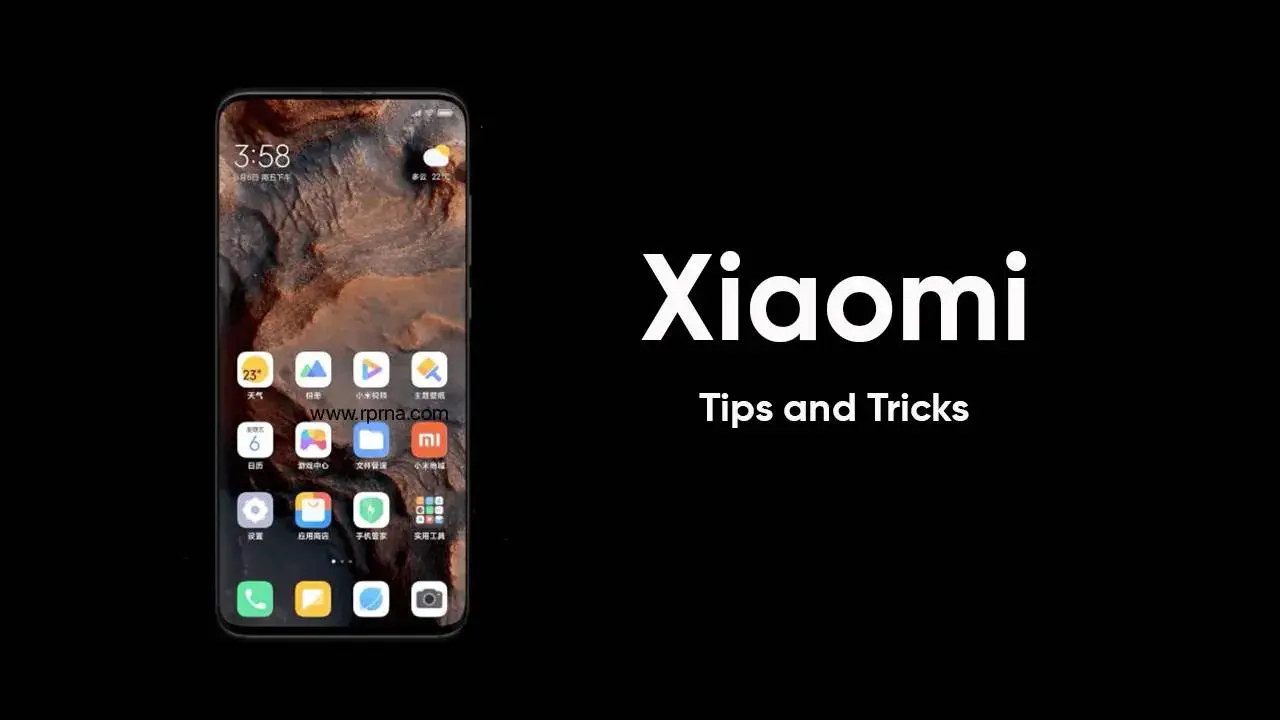
Xiaomi’s HyperOS is a modern, fast system. But let's be real: most users want more. We want better pictures, smoother screen response, and a cleaner look. You can get all that! With a few expert adjustments, you can greatly improve imaging quality, boost system speed, and completely personalize your phone.
Here are the 12 key enhancements, from advanced camera tricks to system-level ADB tuning.

Enhancing Imaging Performance with GCam (Tips 1-3)
Want shockingly better pictures from your Xiaomi? You need the Google Camera (GCam). It uses Google's superior HDR+ and Night Sight algorithms. This is especially true for HyperOS devices. You'll see massive improvements in dynamic range and low-light shots.

- Install the Right Version: You must load the correct GCam APK. We suggest using an app like GCamLoader to find the latest, most stable version for your specific Xiaomi model.
- Use the XML Profile: Simply installing the app isn't enough. You need the corresponding XML configuration file. This file ensures the GCam software talks correctly to Xiaomi's image sensor.
- Correct Calibration: To load it, create a directory like /GCam/Configs/ on your internal storage. Inside the app, double-tap the black area near the shutter button, then import your XML file. This step is critical for proper color and sensor calibration.
Customizing the HyperOS Interface (Tips 4-6)
Make your phone yours with these visual and sound tweaks.

- Personalize Ringtones: Don't stick with the factory sounds. HyperOS lets you fully customize call tones! Go to Settings → Sound & Vibration. You can upload any local audio file. Pro Tip: If you have a dual-SIM phone, you can assign completely different tones for each SIM. This makes it instantly clear which line a call is coming in on.
- Restore Dynamic Weather Wallpapers: Sometimes, HyperOS limits those beautiful animated weather wallpapers on mid-range devices. Why? To save power. You can often restore the full, high-resolution animations by installing the Weather package designed for Xiaomi tablets. It usually works perfectly on smartphones and looks amazing.
- Switch to the App Drawer: Stop cluttering your home screen! To get a cleaner, more organized look, enable the App Drawer mode. Go to Home Screen Settings → With App Drawer. This setup provides visual organization tools and category management, cleaning up your main screen instantly.
Optimizing Gestures and Launchers (Tips 7-8)
Want a cleaner feel with better navigation?

- Fix Third-Party Gestures: When you use a third-party launcher (like Nova or Lawnchair), HyperOS often restricts full-screen gesture support. Power users can bypass this.
- Use Gesture Overlays: Tools such as Fluid Navigation Gestures (FNG) can use Android's Accessibility Services to overlay custom swipe controls. This gives you customizable gestures without doing a complex system exploit.
Deep System Optimization with ADB (Tip 9)
This is the serious stuff. It gives huge performance and battery benefits.

- ADB Debloating: This process uses ADB (Android Debug Bridge) commands from a PC to safely remove unnecessary applications (bloatware). Getting rid of these apps massively improves RAM efficiency and cuts down on hidden background power consumption. It's safe if done carefully, and the best part is that you can always reinstall removed packages later if you need them.
Performance Tuning for a Smoother Experience (Tips 10-12)
Instantly make your phone feel faster with these simple settings changes.

- Speed Up Animations: This is a classic trick. Setting the Window, Transition, and Animator scales to $0.5\text{x}$ in Developer Options makes your user interface feel instantly snappier. It removes visual delays without actually harming system stability or performance.
- Use Performance Mode for Games: HyperOS offers two options: smart automatic balancing and a high-power Performance Mode. If you are gaming or doing a really demanding task, activate Performance Mode via Settings → Battery. It temporarily boosts CPU/GPU performance for maximum speed.
- Ongoing System Maintenance: Improving the Xiaomi HyperOS experience is really about thoughtful, specific customization and maintenance. Remember to check for and install regular system updates, which often include small fixes that boost speed and stability.
Popular News


Latest News
Loading