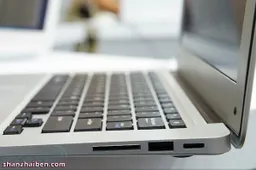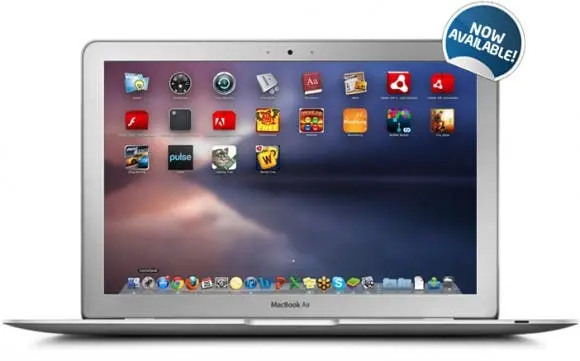
Exciting news for Android loving Mac users as the popular Blustacks for Mac was finally announced allowing Apple users to run Android applications direct from their dock. Keep reading for full instructions on how to install WhatsApp on a Mac!
Blustacks for Mac, much like the Windows version, is a native app player for Mac users allowing Android applications to run on your Mac laptop or desktop just as a native Mac application would.
The free to download software installs a simple user interface along with the App Player and a bunch of free Android applications to play around with.
Once installed, which takes a few moments and is a simple case of following the on screen directions, Bluestacks add an ‘Android Apps’ folder to your Mac’s dock containing a few Android applications including free car racing games and the popular Whatsapp free messaging app.
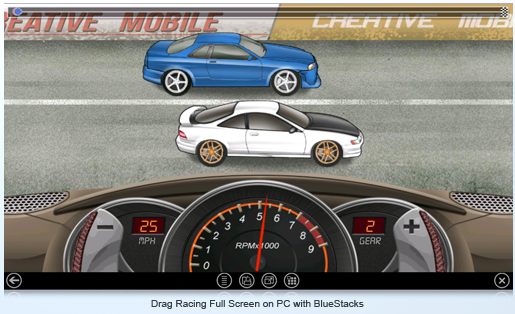
As you would expect Android run extremely quickly on the Mac’s hardware, what’s more many apps can run at full and still look great.
One of our favorite idea’s behind running Android on your desktop or is the fact that they usually take a lot less room when compared to the the PC of Mac counterparts, this is certainly something to think about if you are running a Air or other SSD equipped ultra book with only a few spare Gigs of space left.
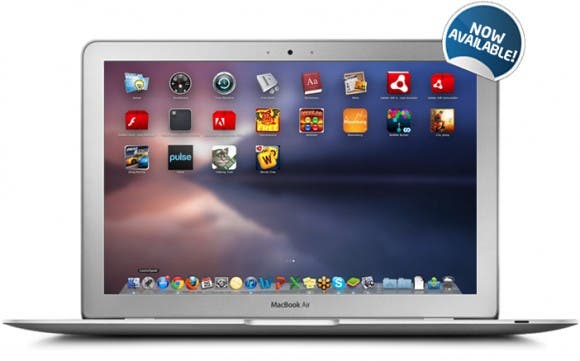
How to install and run WhatsApp on a Mac!
As Whatsapp is one of my favorite applications to run on my iPhone I was keen to try it out on my Macbook Pro, and as it only takes up 5.3mb why not!
If you want to install Whatsapp on your Mac keep reading!
- First you will want to download Bluestacks App Player for Mac from here.
- Once downloaded double click on the package and follow the on screen instructions.
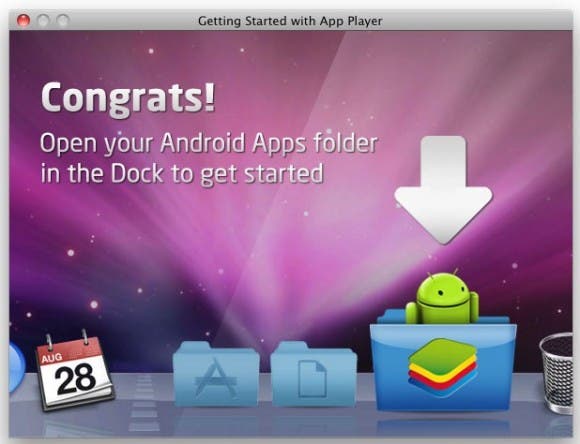
- When the installation is complete a nice little popup window will appear explaining all you need to do is open the Android Apps folder in your dock to begin.
- If you’re like me the first app you will want to try is Whatsapp, however you will have to wait for Bluestacks to connect to an Android store (which it will do automatically) and download the app for you.
- Once download fill in your Whatsapp details and you’re done!
- Congratulations you have Whatsapp running on your Mac!
Which Android applications will you install on your Mac with Bluestacks?
loading
Popular News
Latest News
Loading