/width:1920/height:1280/plain/https://s3-newsifier.ams3.digitaloceanspaces.com/gizchina.com/images/2025-06/45kxwy6bpim7xyz9hrazev.jpg@webp)
Over the years, Windows PCs have made significant strides in battery efficiency. However, many users still experience battery anxiety, especially if their laptops are older. Understanding how your PC and Windows 11 work together can help you extend your battery life. Here are nine settings you can adjust to maximize your battery life on a Windows 11 PC.

1. Create and Save a Battery Report
Before making any changes, generate a detailed battery report using the Power Settings tool. This report provides valuable insights into your PC’s battery usage over time.

- Open Command Prompt by pressing Windows key + R, type “cmd,” and press Enter.
- Type cd %temp% and press Enter.
- Type powercfg /batteryreport and press Enter.
This command saves a battery report in your Temp folder. Open it by typing battery-report.html in Command Prompt. The report includes tables and charts showing recent usage, usage history, and battery life estimates.
2. Check Your Battery’s Current Capacity
Your laptop battery’s capacity degrades over time. The Installed Batteries section in the battery report shows the design capacity and current full-charge capacity. The Battery Capacity History section shows how these values change over time.

To extend battery life:
- Avoid high-temperature environments.
- Perform a full discharge-recharge cycle occasionally.
- Use smart charging if available.
3. Analyze Your Observed Usage Over Time
Understanding how your daily activities impact battery life is crucial. The battery report shows a graph and table under the Battery Usage heading, detailing battery drains over the last three days.

This data helps identify which activities consume the most battery, allowing you to adjust your usage accordingly.
4. Estimate Your Average Battery Life
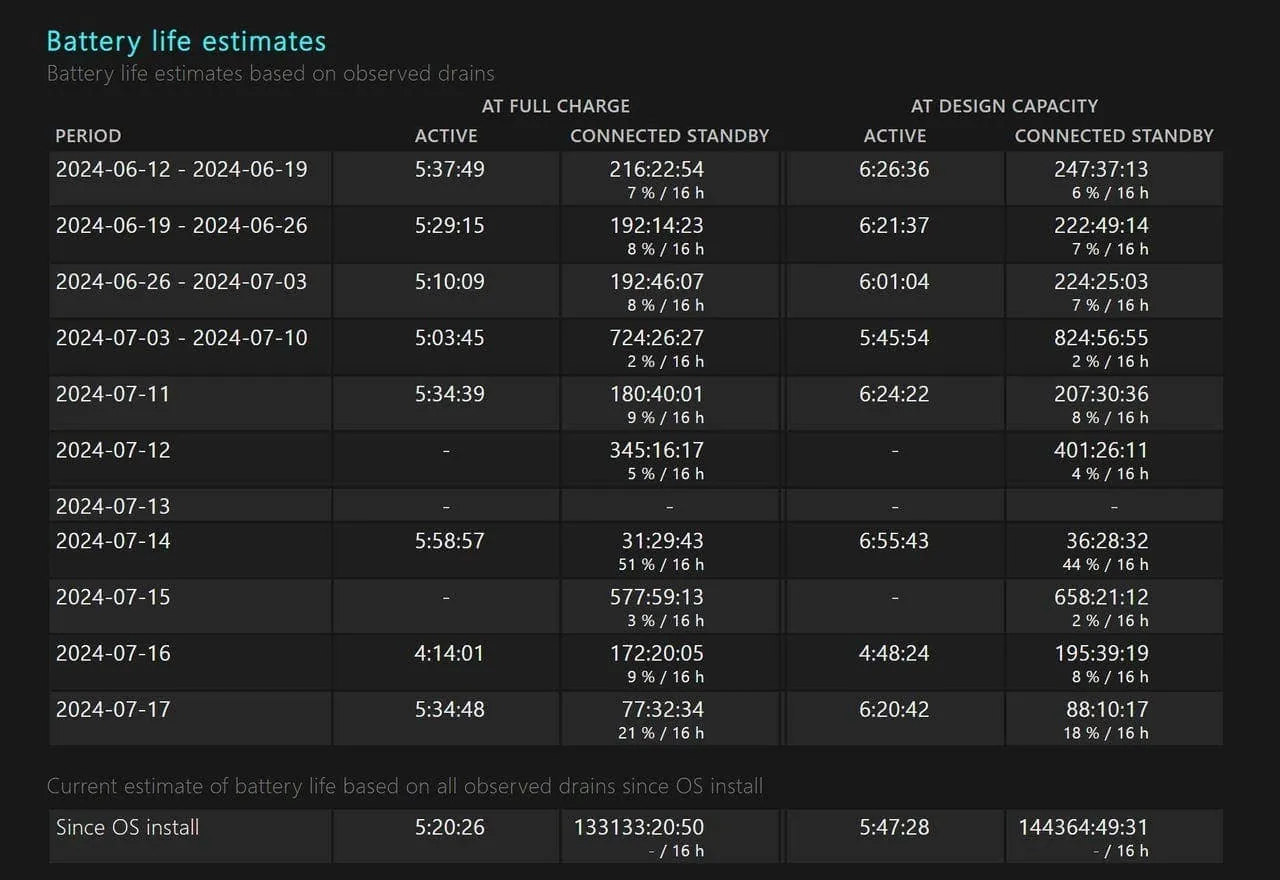
The Battery Life Estimates section in the battery report provides an estimate of your total battery life based on observed activity. Compare the values under “At Full Charge” and “At Design Capacity” to see how much battery life you’ve lost over time.
5. Identify Which Apps Affect Your Battery Life
Windows 11 provides a detailed list of app-by-app power usage. Go to Settings > System > Power & Battery, and click the arrow next to Battery Usage. The Battery Usage Per App section shows which apps use the most power.
Adjust your app usage or explore additional power-saving settings for specific apps to save battery life.
6. Use the Windows Energy-Saving Checklist
Windows 11 has a built-in Energy Recommendations checklist with direct links to settings that can help save energy. Access this list by going to Settings > System > Power & Battery, and clicking Energy Recommendations.

7. Adjust Sleep and Display Settings
Adjust the intervals for turning off the display and putting the system to sleep. Go to Settings > System > Power & Battery > Screen and Sleep to configure these options. Turning off the display quickly and setting aggressive sleep thresholds can save significant battery power.

8. Learn the Quick Shutdown Secrets
You can use the Shutdown command for quick transitions between power states. Open Command Prompt and use commands like shutdown /r for a full restart or shutdown /fw to restart and go to the firmware user interface.
9. Use the Battery Saver Option for Maximum Power Savings
Windows 11 includes a Battery Saver option that turns off activities like push notifications and background activity for some apps. Battery Saver can be set to turn on automatically when battery capacity drops below a certain percentage.
To enable it:
- Go to Settings > System > Power & Battery.
- Click the down arrow next to Energy Saver and configure the settings.
You can also turn on Battery Saver manually from the notification area by clicking the battery icon and selecting Battery Saver.
Conclusion
By adjusting these settings, you can significantly extend your laptop’s battery life. Windows 11 offers various tools and options to help manage and optimize power usage, making it easier to get through a full day on a single charge.
Popular News
Latest News
Loading