One UI 8.5 Brings Back the Feature We All Missed in terms of Notifications
SamsungFriday, 05 December 2025 at 11:04
Big news for anyone who got seriously annoyed by a missing feature in the last major Samsung update! Samsung is getting ready for the One UI 8.5 release (it’s based on Android 16, by the way), and while we're expecting a fresh look and tons of new features, one small but very useful feature is officially making a comeback.

Why Clearing Notifications Felt Too Dangerous
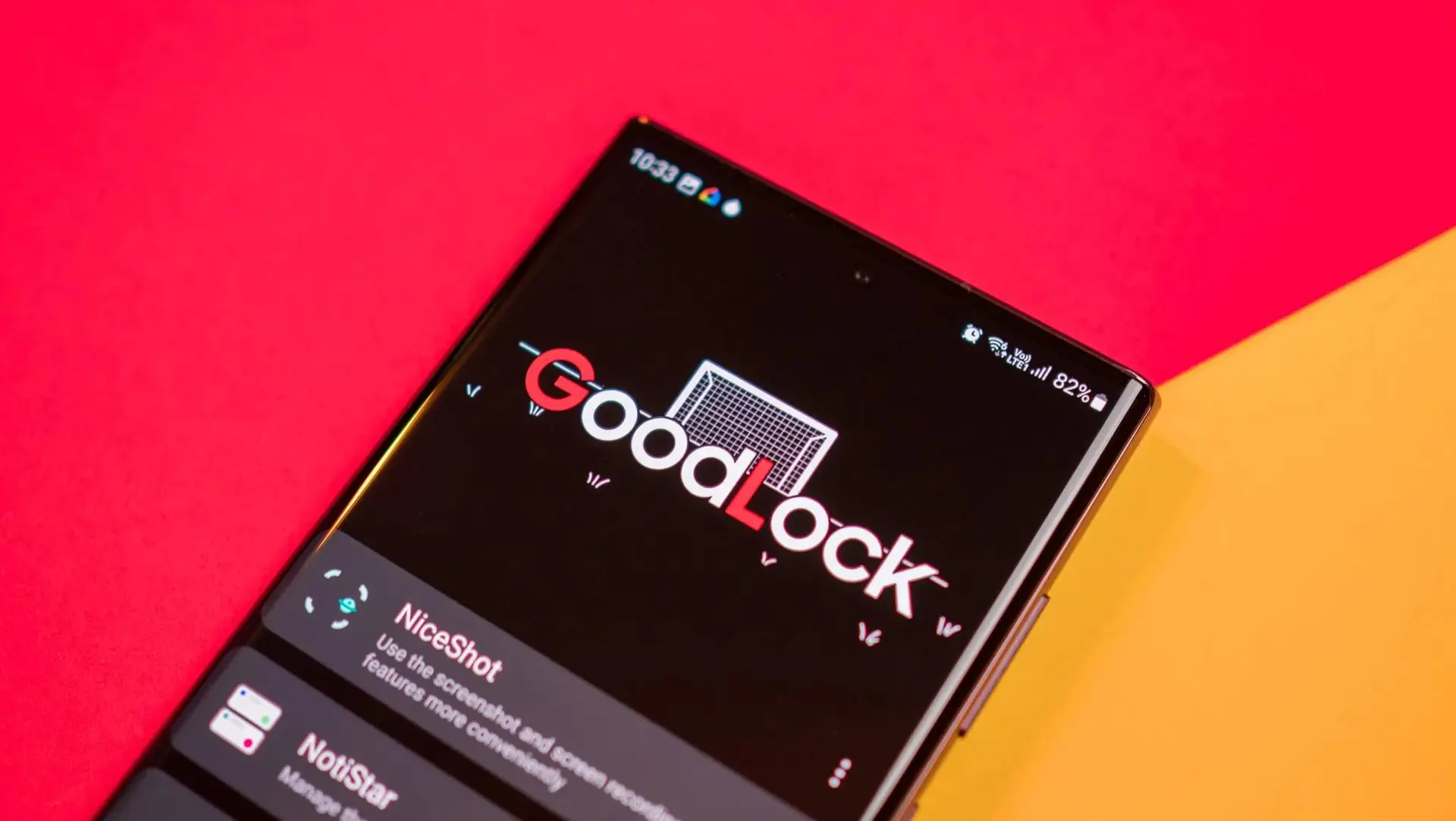
Remember the NotiStar module from Samsung’s Good Lock suite? It’s basically a notification history manager, letting you see alerts even after you swiped them away. But in One UI 7, NotiStar had a golden feature: it let you lock important notifications.
This meant that even if you hit the dreaded "Clear all" button in the notification shade, those critical alerts would stay right there, visible and safe. Then, Samsung removed this locking option in One UI 8. Why? Nobody knows, but it left a lot of power users pretty unhappy.
Key Points
- Feature Restoration: Samsung is bringing back the popular notification locking feature within the NotiStar module for One UI 8.5.
- Functionality: This feature allows users to "lock" notifications from specific apps, preventing them from being accidentally cleared by the "Clear all" button.
- Previous Removal: The notification lock functionality was present in One UI 7 but was controversially removed in the transition to One UI 8.
- Official Confirmation: The return of the feature was officially confirmed by a Samsung community moderator.
- Temporary Workaround: Users can currently re-enable the feature ahead of the One UI 8.5 launch by entering a hidden Test mode in the NotiStar app settings.
Confirmed: The Feature Is Back
A moderator on the Samsung community forums has officially confirmed that this specific notification locking feature is being restored in One UI 8.5.
This means you will soon be able to protect notifications from specific apps (like reminders, work chats, or security alerts) from being accidentally dismissed. The return of this functionality makes NotiStar, which is already useful for tracking history, even more valuable for keeping your most important alerts front and center.
Don't Want to Wait? Here's the Quick Fix
If you're already on an early One UI 8 build and absolutely need this feature now (and you don't want to wait for the official One UI 8.5 rollout, which is rumored to start December 8th):
- Open the Samsung NotiStar app.
- Tap the three dots menu.
- Select Information.
- Repeatedly tap the name “Kwangho Kim” until a "Test mode" message pops up.
- The missing lock option should now appear in the Labs section of NotiStar.
While this fix works, the official re-integration into One UI 8.5 means everyone will get this crucial notification management tool back soon.
Popular News

Latest News
Loading