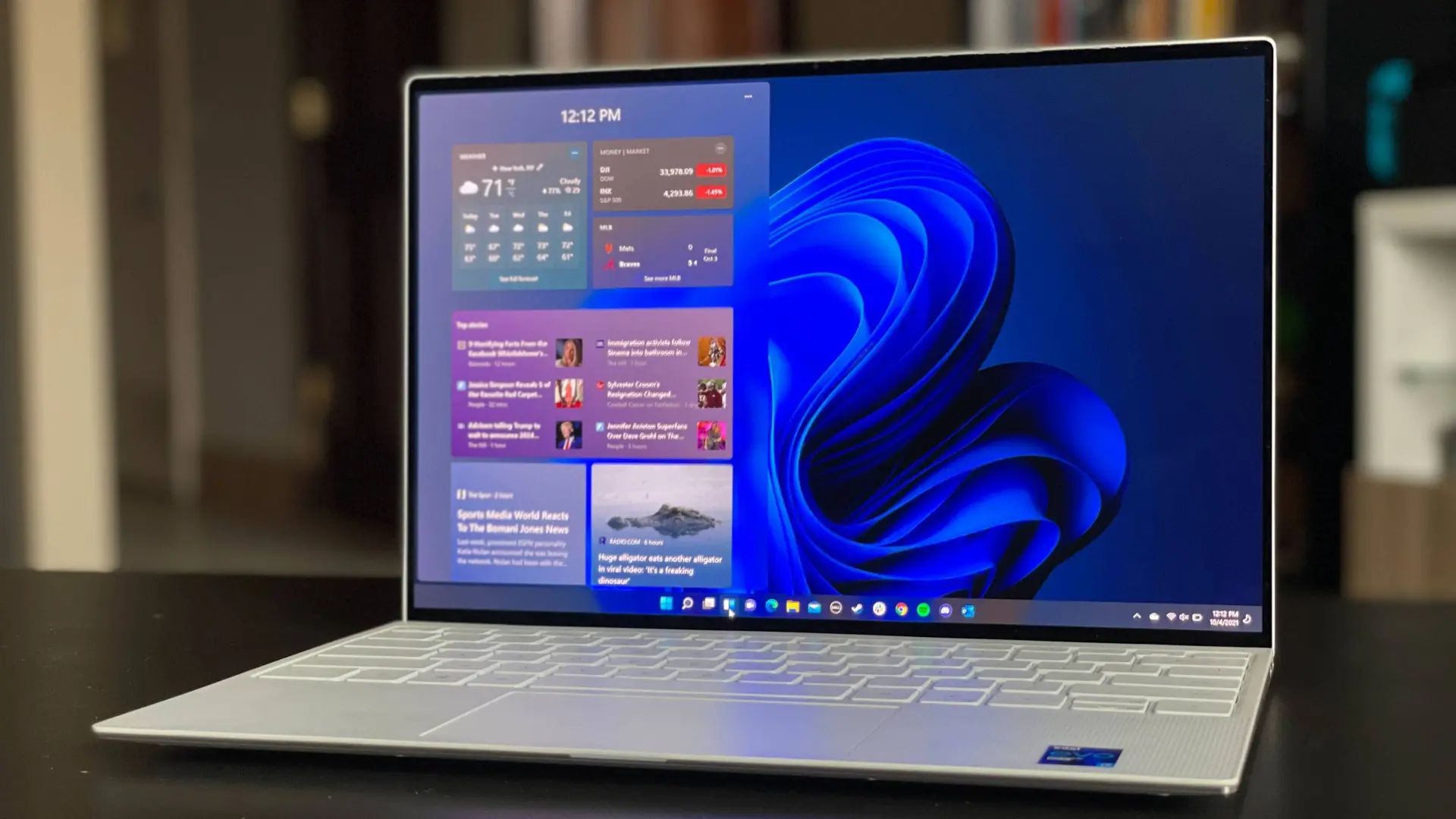
Windows 11 looks sleek and fresh, but out of the box, it shares more about you than you might like. Microsoft uses this data to improve its services and show you personalized content. That’s fine for some people—but you don’t have to give away more than you’re comfortable with. A few quick changes can tighten your privacy without breaking anything on your PC.
Here are the settings worth checking today.
Cut Down Location Access
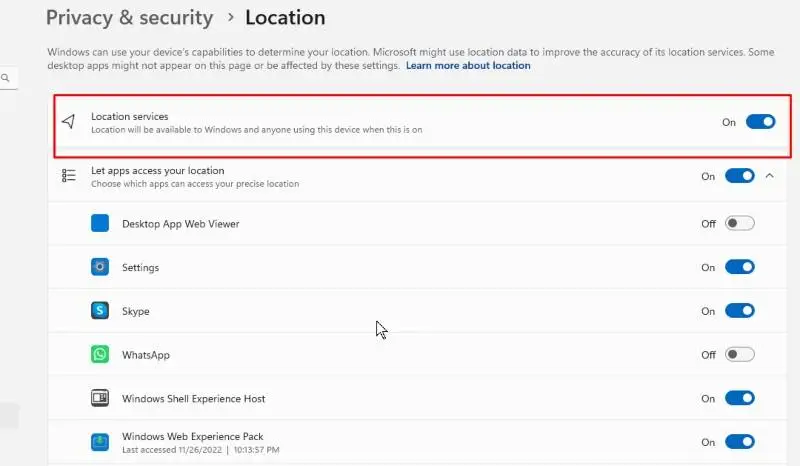
Location is helpful for apps like Maps or Weather, but most programs don’t need to know where you are.
- Open Settings > Privacy & Security > Location.
- Check which apps are using your location.
- Turn off access for anything unnecessary.
Fewer apps tracking you means better privacy and even a slight boost in performance.
Turn Off Ad Tracking
Read also
Windows creates an advertising ID for your device so companies can serve targeted ads. You don’t have to leave this on.
- Go to Settings > Privacy & Security > General.
- Switch off Let apps show me personalized ads by using my advertising ID.
You’ll still see ads, but they won’t be based on your personal activity.
Reduce Diagnostic Data
Microsoft collects usage data to improve Windows. You can limit how much you share.
- Open Settings > Privacy & Security > Diagnostics & feedback.
- Under Diagnostic data, select Required diagnostic data.
This choice keeps the data sharing to a minimum.
Stop Activity History Sync
Windows keeps a record of the apps you use and can sync that information to your Microsoft account. If you don’t need this, turn it off.
- Go to Settings > Privacy & Security > Activity history.
- Uncheck Store my activity history on this device and Send my activity history to Microsoft.
This keeps your app usage private and local to your PC.
Control Camera and Microphone Access

Some apps ask for camera or microphone access they don’t really need.
- In Settings > Privacy & Security, click Camera and review the list of apps. Turn off access for anything you don’t trust.
- Do the same under Microphone.
This stops unwanted apps from using your hardware.
Limit Access to Personal Data
Apps can also request your contacts, calendar, or call history. Not every app deserves that information.
- Check Contacts, Calendar, and Call history in Privacy & Security.
- Check your apps and disable all those that don't need access to your personal data.
Doing this helps you control which apps get access to your personal data and save your personal information from the wrong hands.
Delete All Location History in Windows 11

Windows stores your past locations on your device. If you don’t need that record, clear it.
- Go to Settings > Privacy & Security > Location.
- Under Location history, click Clear.
- You can also toggle off location services entirely if you rarely use them.
Turn Off Tailored Experiences in Windows 11
Microsoft sometimes uses your diagnostic data to show tips or suggestions. If you’d rather not share extra info, disable it.
- Visit Settings > Privacy & Security > Diagnostics & feedback.
- Switch off Tailored experiences.
Review Permissions Regularly
New apps may request permissions over time, and it’s easy to forget what you’ve approved. You can also set a privacy-checking reminder, which will check your privacy settings automatically every month. To help keep your PC safer, it is advisable to regularly remove unnecessary access to your data.
Final Word
These changes don’t take long, but they give you more control over your information. Windows 11 can run perfectly without collecting all your data or tracking every move. Spend a few minutes today adjusting these settings. Doing this ensures that your privacy is protected while peacefully enjoying all the exciting features Windows 11 has to offer.
Popular News


Latest News
Loading