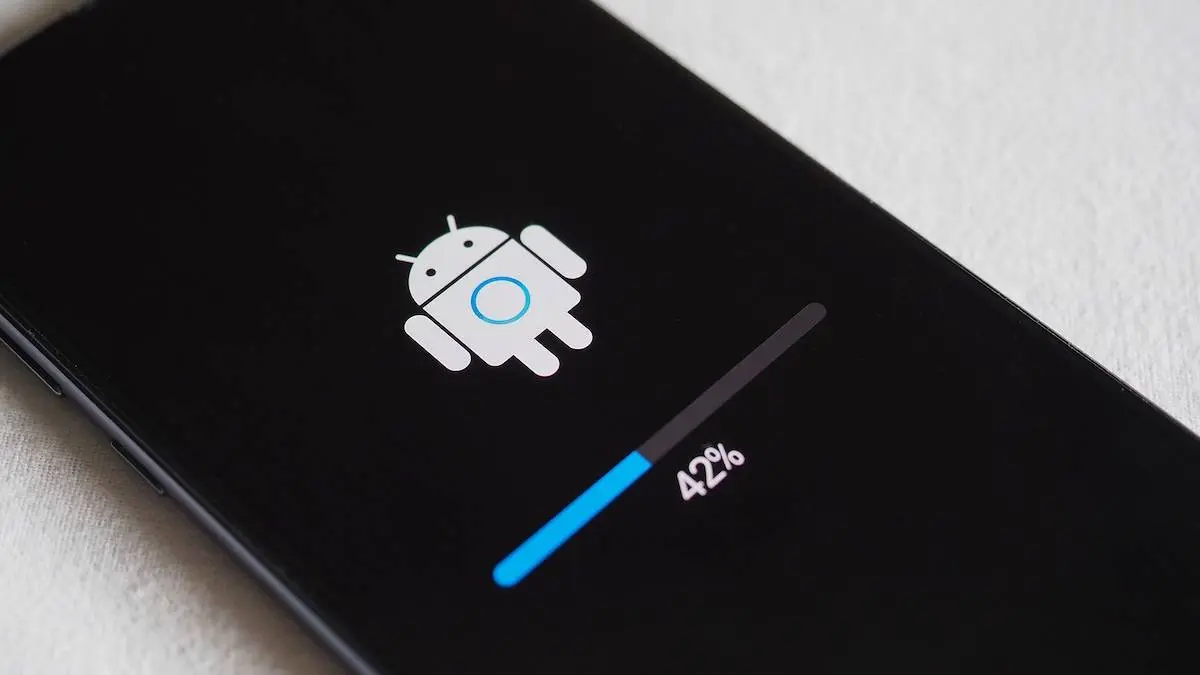
Your Android phone can be a lifesaver — until it starts acting up. Apps may crash. The battery might drain fast. Or storage could run out at the worst time.
The good news? You can fix most problems yourself without spending money at a repair shop. Here’s how.
1. Battery Draining Too Fast

A dying battery can be frustrating. Here’s how to make it last longer:
- Go to Settings > Battery > Battery usage. See which apps use the most power.
- Close or uninstall apps that drain your battery.
- Turn on Battery Saver mode.
- Reduce screen brightness and use Auto-Brightness.
- Switch off Wi-Fi, Bluetooth, and GPS when not in use.
If your battery is still draining, restart your phone once a day. This simple practice helps clear all processes running in the background.
2. Laggy or Slowed-Down Smartphone
If you notice that your smartphone is running slower than usual, try these simple steps to get your phone back to its usual performance.
- Close all unused app from background running apps screen.
- Clear cache by navigating to: Settings > Storage > Cached data.
- Uninstall all apps you don't need anymore or apps you no longer use.
- After performing the the tasks above, restart your phone.
For older devices, disable animations: Settings > Developer options > Window animation scale. You can completely disable animations by selecting "off" and setting it to its minimum level of 0.5x.
3. What to do if Some Apps Keep Crashing
Crashing apps could be very frustrating, especially if you really need to use that particular app. Sometimes, just restarting your device could fix the issue. However, if restarting doesn't fix the issue, try the following:
- First clear the cache for that particular app. Open Settings > Apps > App name > Storage > Clear cache.
- If this doesn't work, you may have to use the other "clear" option which will clear all data of the app.
- Next open the Play Store app to check if there is an update for the app. If there's an update, update the app immediately to fix the issue.
- If update fails to fix the crashing issue, uninstall the app and reinstall it to start afresh.
If you have several apps crushing, first restart your smartphone to fix the issue. If the issue still remains after restarting, check for system update and update your smartphone.
4. Storage Space is Full

Running out of space stops you from installing apps or taking photos. Here’s what to do:
- Delete old photos, videos, and files you don’t need.
- Move files to Google Drive or an SD card.
- Clear cached data.
- Uninstall large apps you rarely use.
You can also enable Google Photos backup and delete local copies of your pictures.
5. Overheating

Phones heat up when overused. But constant overheating can damage the battery.
- Avoid using your phone while charging.
- Close background apps.
- Keep your phone out of direct sunlight.
- Lower screen brightness.
If overheating happens during gaming, lower the graphics settings.
6. Facing Wi-Fi or Mobile Data Connection Issue?
Facing internet connection issues could be one f the most frustrating things in a world where internet connection forms part of our everyday lives. If you encounter any internet-related issues with your smartphone, try out these simple tips to get you back online:
- Toggle Airplane mode on, then off.
- Restart your phone.
- If your device is connected to a Wi-Fi network, open the Wi-Fi settings and select the network you're connected to. Tap on "forget" and reconnect again.
- For mobile data, check if your data plan is active.
- For mobile data, it could be that your data plan has expired or it is inactive. Check if you still have an active data plan.
If everything is intact but the issue still persists, you can reset the network settings. Open Settings > System > Reset > Reset network settings. In some phones, this will restart the phone after resetting the network. Give your phone a few minutes if it has to restart.
7. Android Bluetooth Connection Issue
If your Bluetooth seems to be giving issues, there few things you can do to rectify the issue:
- First, turn of the Bluetooth and turn it on again to see if it fixes the issue.
- Forget the paired device and reconnect it from scratch.
- Lastly, restart both devices to get them refreshed and try connecting again.
If nothing works, clear Bluetooth data: Settings > Apps > Show system apps > Bluetooth > Storage > Clear data.
8. Android Camera is Blurry or Won’t Open

If your camera won’t work:
- Clean the lens with a soft cloth.
- Restart your phone.
- Clear the camera app’s cache and data.
- Update your camera app in Google Play Store.
If the lens is damaged, you may need a replacement.
Final Thoughts
Most Android problems have quick fixes. You don’t always need a technician. Try the steps above before heading to a repair shop.
A few minutes of troubleshooting can save you time, money, and frustration.
loading
Popular News



Latest News
Loading