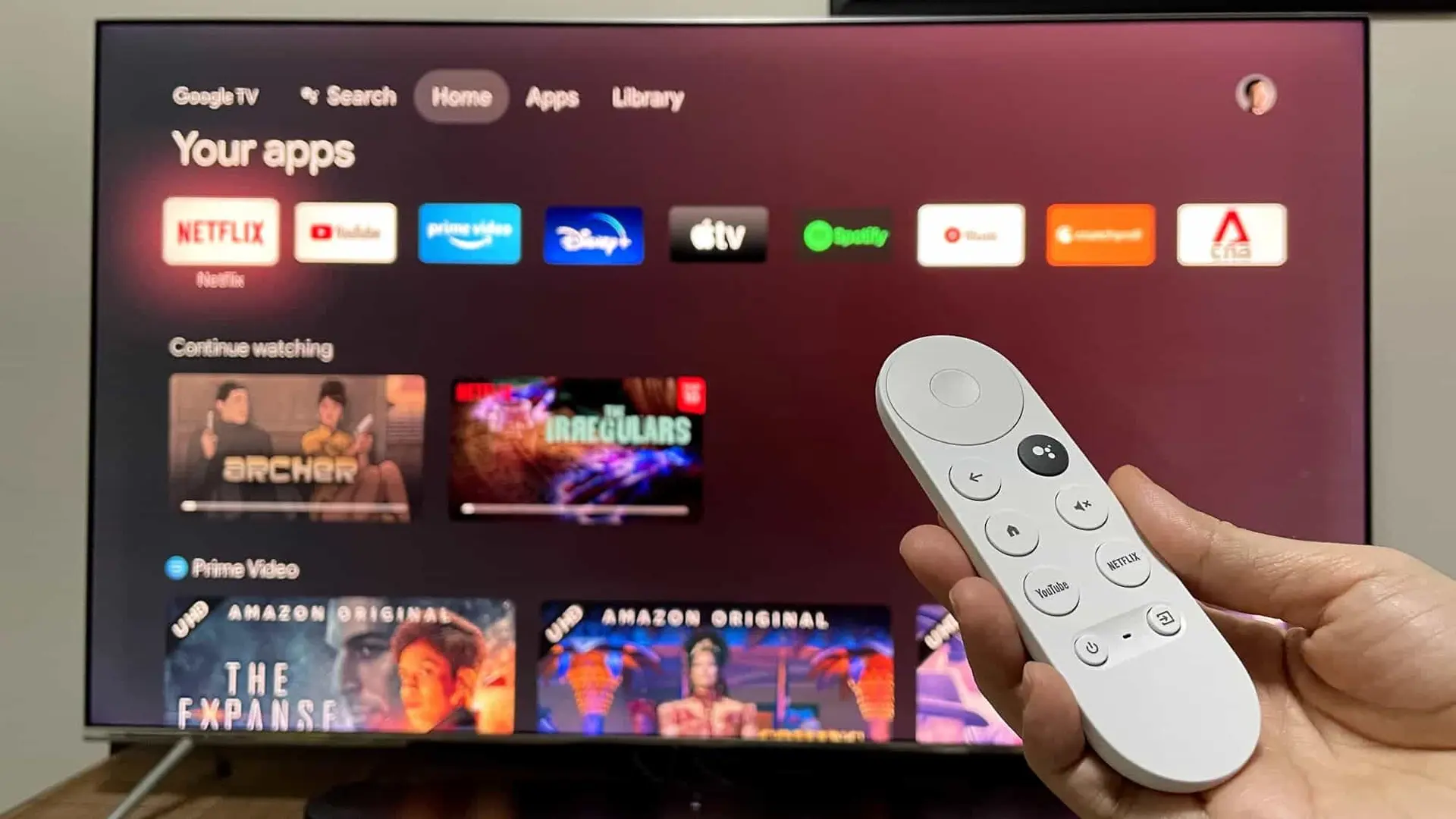
Optimizing Chromecast with Google TV for a Smooth Streaming Experience

Prioritizing Performance: A Balancing Act
-
Taming System Animations: Similar to Android phones, Chromecast with Google TV employs system animations to enhance visual appeal. Although aesthetically pleasing, these animations can tax the hardware, especially when numerous apps are running. Disabling them allows for a more streamlined user experience. Here's how:
- Navigate to your TV's Settings menu.
- Locate "System" and then "Information."
- To activate developer mode, find "Operating System Compilation" and press the central button on your controller repeatedly until options are enabled.
- Return to "System" and locate "Window animation scale," "Transition-animation scale," and "Animation duration scale."
- Consider lowering these values to 0.5X for a noticeable performance improvement. Disabling them entirely is also an option, but transitions might appear less polished.
-
Decluttering the App Landscape: Over time, unused applications can accumulate on your Chromecast. These apps might consume resources by running background processes. Regularly reviewing and uninstalling unnecessary apps helps to streamline performance. Access "Settings" > "Applications" and remove any apps you haven't used recently or don't consider essential.
-
Maintaining a Single User Account: Multiple user profiles can potentially slow down the Chromecast. Each profile requires the device to manage individual recommendations, data, and ongoing tasks. While convenient for families, consider maintaining a single user account for optimal performance, especially if experiencing sluggishness.
Streamlining the User Interface:
Embracing App-Only Mode: The latest Chromecast iteration offers an "Applications only mode" that simplifies the interface. This mode presents only installed app icons, eliminating the need for constant content recommendation updates and background processes associated with the standard interface. To activate this mode, navigate to "Settings" > "Accounts and Login." Select your profile and activate the "Applications only mode" switch.
Minimizing Lock Screen Impact: The Chromecast lock screen displays a captivating carousel of images. While aesthetically pleasing, these images are downloaded from the internet, keeping a background process active. To minimize the impact, access your device's settings and then "System." Locate "Ambient mode" and choose "Art Gallery" as the option. Subsequently, deactivate all subchannels and weather information.
Additional Considerations:
The Power of Rebooting: Just like smartphones, a simple restart can breathe new life into your Chromecast. Restarting clears cached data, terminates unnecessary processes, and provides a fresh start. When encountering sluggishness, head to "Settings," "System," and "Restart." This quick fix can often resolve performance issues.
Telemetry and Data Usage: Smart devices often collect user data to enhance software and hardware development. While transparent, this data transmission can consume resources. To minimize this impact, explore the settings menu to locate options related to telemetry and data usage. Disabling these options can potentially improve performance, although it might limit the device's ability to learn your preferences.




Loading