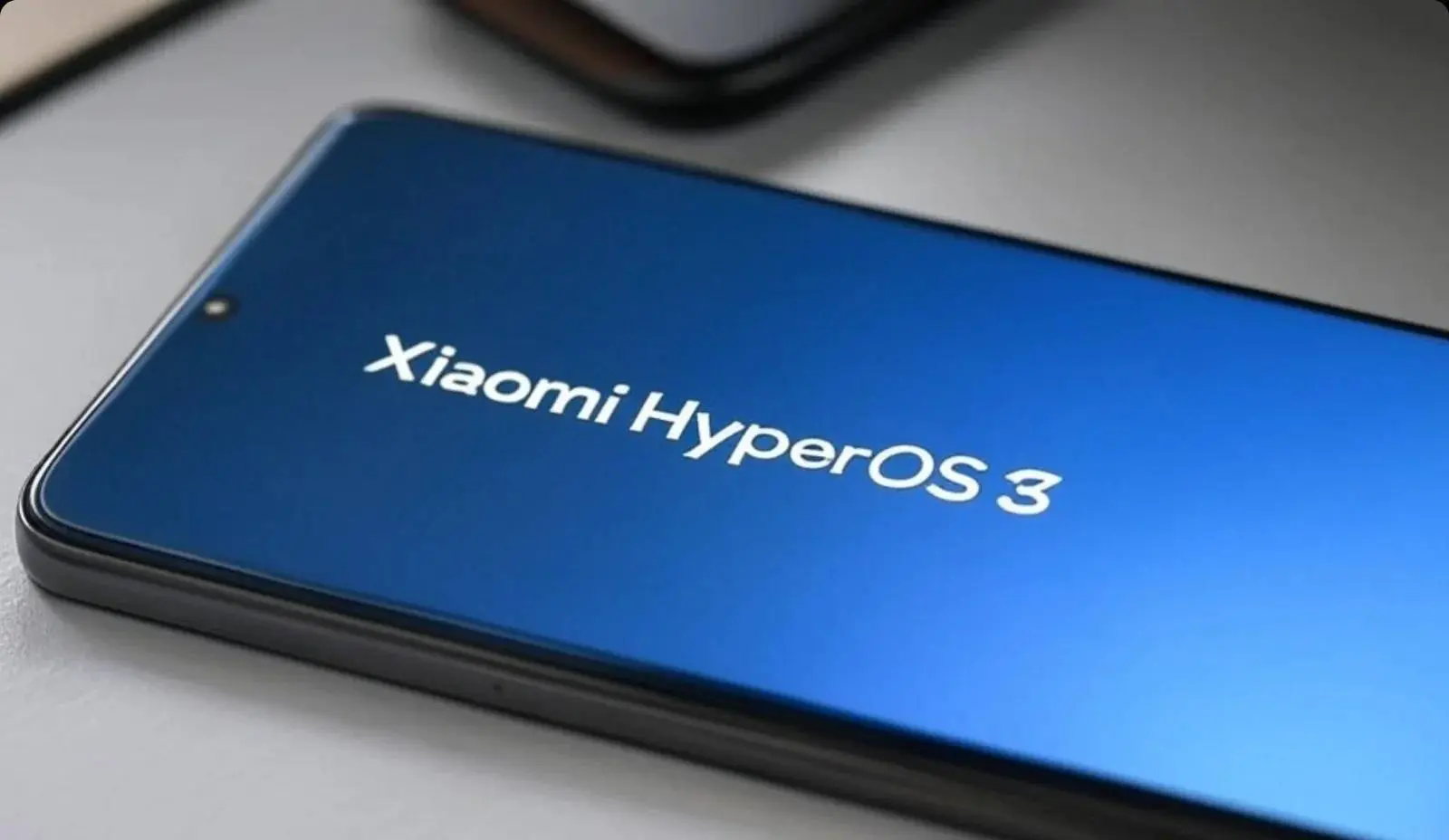
HyperOS has officially transitioned from a "skin" into a full-blown cross-device operating system. With the widespread rollout of HyperOS 3.0, the Control Center is no longer just a pull-down menu; it is the central nervous system of your Xiaomi ecosystem. If you are still using the stock layout, you are leaving 60% of your phone’s efficiency on the table. Since Christmas is gone, but I didn't get the chance to give you a present, here are my 7 favorite tips on Xiaomi's HyperOS 3. Perhaps they can be of use to you all as well.

Key points
- HyperOS 3.0 introduces real-time "Liquid Glass" rendering for flagship-level blur.
- Use Shizuku and Canta to remove the grey background overlay on budget devices without rooting.
- HyperConnect enables seamless app handoff and wireless camera sharing via the Control Center.
- "Inertial Swiping" allows for horizontal navigation between notifications and toggles.
- Advanced users can use HyperCeiler via LSPosed to unlock and rearrange locked tiles.
1. The Rendering Engine: "Liquid Glass" vs. Grey Overlays
One of the most common complaints in the Xiaomi community involves the "Grey Background" on budget Redmi and Poco devices. In 2026, Xiaomi uses a tiered rendering system. Flagships like the Xiaomi 16 Ultra use the Liquid Glass UI, which calculates real-time Gaussian blur at the kernel level.

- The Manual Fix (No Root): If your phone has a grey background, use the Shizuku + Canta method. Install Shizuku from the Play Store, pair it via Wireless Debugging in Developer Options, and use Canta to uninstall com.miui.systemui.devices.overlay. This forces the system to stop "masking" the blur, effectively giving your budget phone a flagship look.
- Performance Note: In HyperOS 3.0, enabling blur on a device with less than 6GB of RAM can cause "SystemUI" lag. If you notice stuttering, set the Window Animation Scale to 0.5x in Developer Options to compensate.
2. Layout Logic: Split-Shade vs. Classic
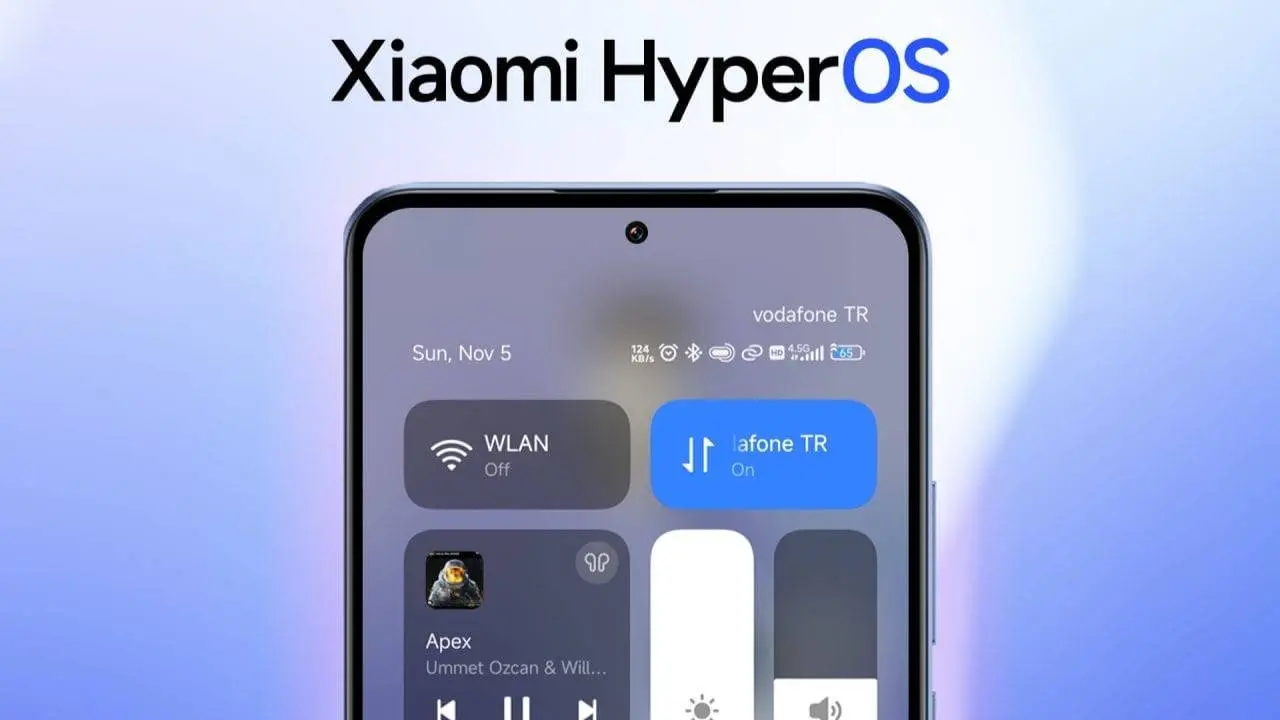
HyperOS 3.0 has doubled down on the "iOS-inspired" split-shade. Swiping from the top-left reveals your notifications, while the top-right opens the toggles.
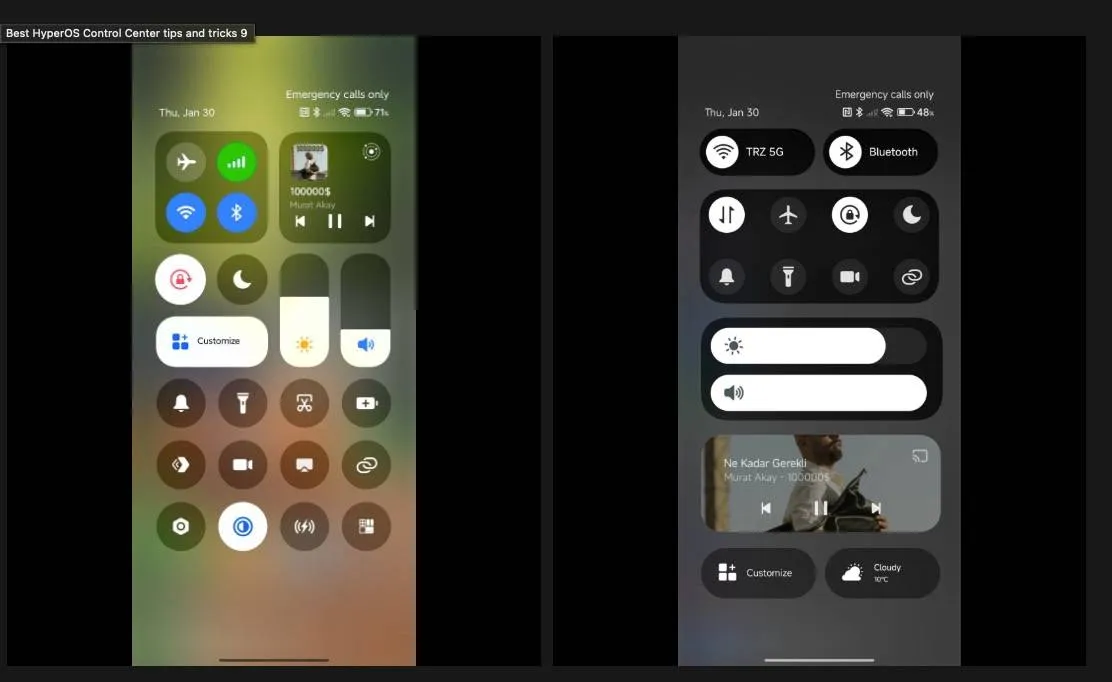
- The Style Switch: Go to Settings > Notifications & Status Bar > Control Center Style.
- Classic Mode: Best for small-screen devices like the Xiaomi 15 Mini. It keeps toggles and alerts in one list.
- New Version (2026 Build): This version features "Inertial Swiping." You can now swipe horizontally between the notification panel and the Control Center without reaching back to the top of the screen.
3. HyperConnect: The Cross-Device Power Play
The 2026 version of the Control Center includes the "Smart Hub" (formerly Xiaomi Magic Hub). This is where the real power lies.

- App Handoff: If you are editing a document on your phone, pull down the Control Center. You will see a "floating" icon of that app. Drag it toward the icon of your Xiaomi Pad 7 or Xiaomi Book to instantly open the app on the larger screen.
- Camera Share Toggle: This is a life-saver for professionals. Turn this on to use your phone’s periscope telephoto lens as a wireless webcam for your PC during Zoom calls. It provides much better quality than any built-in laptop camera.
- Audio Broadcast: Using Auracast (Bluetooth LE Audio), your Control Center can now broadcast your phone's audio to up to five different Xiaomi Buds 6 pairs simultaneously.
4. The "HyperIsland" Integration
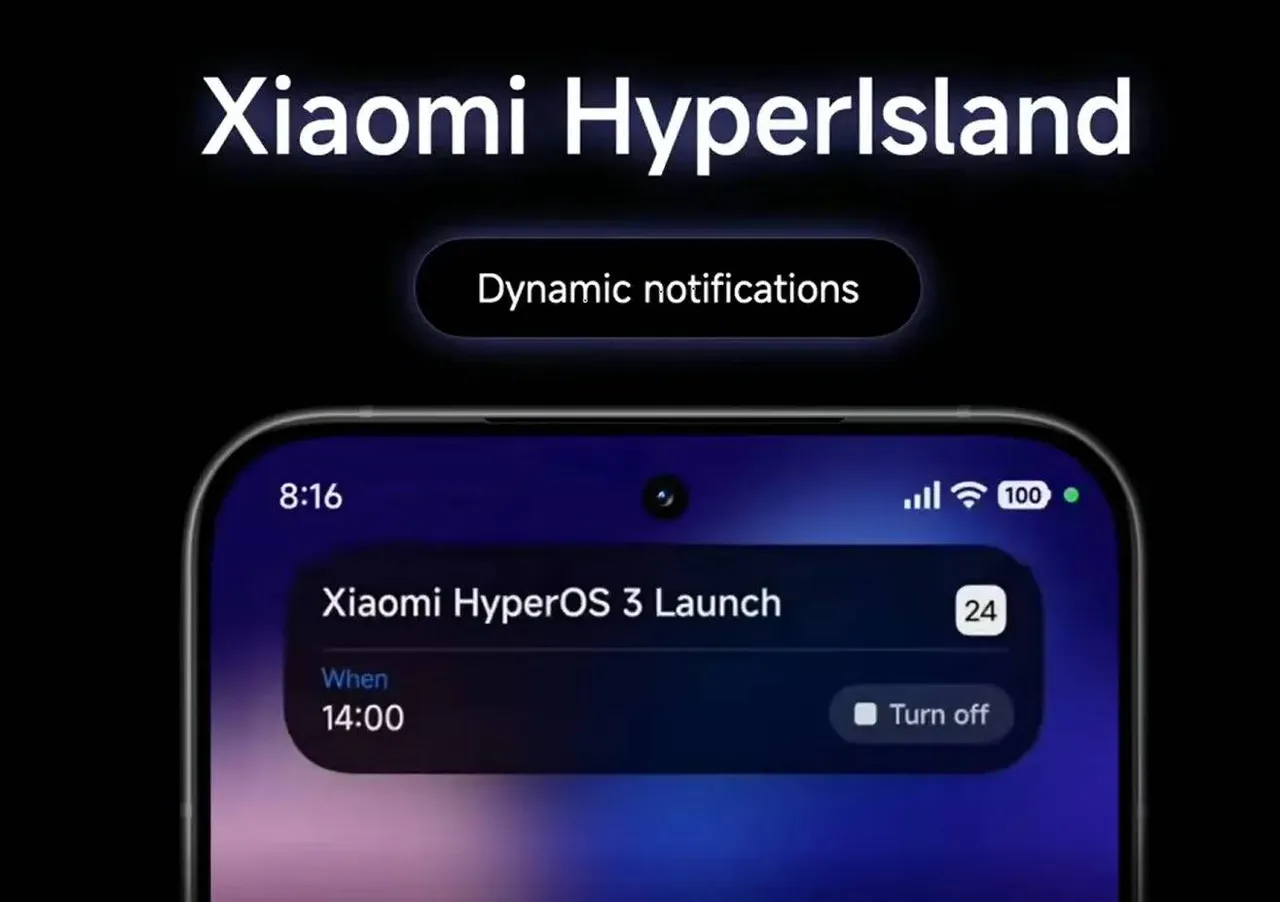
Xiaomi’s answer to Apple’s Dynamic Island is now fully baked into the Control Center.
- Expanded Tiles: Long-press the Music Player or Timer tile in the Control Center. It will expand into a larger "HyperIsland" widget that allows you to scrub through tracks or adjust timer intervals without opening the full app.
- Smart Info: If you have a food delivery or a ride-hailing app active, a live status bar appears at the very top of the Control Center, giving you real-time GPS updates.
5. Advanced Toggle Customization
Xiaomi locks the first four toggles (Wi-Fi, Mobile Data, Bluetooth, and Torch). To break this restriction, you must use HyperCeiler (requires Root and LSPosed).
- Rooted Customization: HyperCeiler allows you to swap out the "Mobile Data" tile for Hotspot or VPN, which is a godsend for travelers.
- Non-Root Alternative: Download the Quick Settings app. Use it to create "Custom Tiles." These act as shortcuts to hidden system settings, like Wireless Debugging, Engineer Mode, or even a Refresh Rate Toggle (60Hz vs 144Hz).

6. Notification Management: HyperOS vs. Android Style
You can customize exactly how alerts look by going to Settings > Notifications > Notification Shade.
- HyperOS Style: Uses larger icons and groups notifications by "Importance" using AI.
- Standard Android: Better for "Inbox Zero" enthusiasts who want to see every individual alert clearly.
- The "Clear All" Trick: In HyperOS 3.0, the "Clear All" button has been moved to a more ergonomic position near the bottom-right, making it easier to reach with your thumb.

7. Thematic Overhaul: More Than Just Colors
Themes in 2026 don't just change the wallpaper; they change the Control Center hierarchy.
- Component Masking: You can go to the Themes App > My Profile > Customize Theme > Status Bar to apply a specific Control Center look from one theme while keeping the icons from another.
- Recommendation: Look for the "HyperGlass V3" theme for a transparent, neon-edged look that makes the toggles pop against dark backgrounds.
Popular News
Latest News
Loading